Showing posts with label tutorial. Show all posts

Wednesday, March 26, 2014

Best Tips and Tricks for Maintaining Your Windows PC

00_lead_image_maintaining_windows_pc
When working (or playing) on your computer, you probably don’t think much about how you are going to clean up your files, backup your data, keep your system virus free, etc. However, these are tasks that need attention.
We’ve published useful article about different aspects of maintaining your computer. Below is a list our most useful articles about maintaining your computer, operating system, software, and data.

Organize and Manage Your Data

Before considering how you will regularly backup your data, it’s a good idea to organize your files and folders first so they are easier to backup. The following articles show you ways to organize your files, removing duplicate and old files, and securely delete files no longer needed.

Clean Up and Optimize Your System

Once you have organized your files and folders, it’s time to perform some basic cleanup tasks to optimize your system. The articles below discuss using CCleaner to cleanup temp files, cookies, and internet history, manage startup programs, and even how to whitelist important cookies. We also show you how to schedule disk cleanup and disk defragmentation in Windows, use Check Disk, clean up old downloads automatically, and the best tips for speeding up your PC. These tips could help improve the performance of your PC, as well.

Disinfect Your System

Before backing up your data (discussed later in this article), you should make sure your files are virus-free. We’ve covered various ways of disinfecting your PC, such as tools to clean your infected PC, how to scan files for viruses before using downloading and using them, and a simple trick to defeat fake anti-virus malware.

Analyze and Reduce Your Disk Usage

If, in the process of organizing your many files, you’ve discovered that you’re running low on disk space, there are easy ways to determine what is taking up the most space on your hard drive. The following articles show you 10 free tools for analyzing your hard drive space in Windows and some simple tips on reducing disk usage in Windows.

Tweak Windows to Improve Performance

Another way to improve your PC’s performance is to tweak Windows. The following articles show you how to disable startup programs and built-in Windows features you don’t use and make system restore use less hard drive space. We also list the 20 best registry hacks to improve Windows and even how to delete user accounts in Windows 7 so your system isn’t cluttered with user accounts you don’t use.

Keep Windows and Software Up-to-Date

Part of computer maintenance includes keeping Windows and your software programs up-to-date. The following articles show you how to force Windows to find update for more than just itself, such as for Microsoft Office and an easy method of checking for updates to your software programs. We also explain when you need to update your drivers and how to do so safely.

Back Up Your Data, Software Keys, and Drivers

Now that you’ve organized your files and folders and cleaned up, optimized your system, you need to consider your backup plan. Normally, when we think of backups, we think of backing up our data files. However, to make it easier to set up your system again, should the need arise, you should backup your software keys and drivers. This makes the process of re-installing software in a fresh install of Windows quicker and easier. The articles below show you how to recover keys for Windows and software programs and how to backup and restore hardware drivers. We also have collected the best articles we have published about backing up and syncing your data into one article.

Besides maintaining your Windows system and your data, we recommend cleaning the inside of your computer on a regular basis to prevent overheating and dust build up.

Friday, March 21, 2014

How to Insert a PDF File into a Word Document

Recently, I had to take a few pages out of a PDF document and put them into a Word document that I needed to send to a client. In the process of doing so, I figured out a few ways that you can go about inserting a PDF document into a Word document and that’s what I’m going to explain here!
If you have ever used different versions of Microsoft Office, you probably have felt the pain of dealing with features being moved around or features being removed completely. Even though Microsoft doesn’t keep everything consistent between versions, the process of inserting a PDF file is pretty much the same. I’ll explain the process for the Mac version (2011), which is slightly different, and for several of the latest releases of Office for PC (2007, 2010, 2013).
One big issue with the whole process is inserting multiple page PDFs into a Word document. Inserting a single page is easy enough, but when your PDF has more than one page, Word fails miserably. Apparently, when you insert an object into Word it cannot span more than one page and that’s why when you try to insert a multi-page PDF file, it only shows the first page.
There are two ways you can go about fixing this: one is to convert the whole PDF into a Word document itself and then insert or the second way is to convert each page of the PDF into an image and then insert the images into your Word doc. Depending on your PDF, converting to Word usually messes up the original layout of the PDF. The best option is to convert to images, which I explain below.

Converting Multiple Page PDFs to JPG

Before we get into actually inserting files into a Word doc, let’s go over how to convert a multiple page PDF into image files, namely the JPG format. You can also save out to PNG or TIFF format, which could get you more crispness in the text. There are some free ways and some paid ways, so it depends on how often you do this and what software you already have.

Adobe Acrobat Full

If you have the full version of Adobe Acrobat, then you can simply do a Save As or Save As Other and choose TIFF, PNG or JPG as the file type for the output. Acrobat will automatically convert each page into a separate image file, which you can then insert into your Word doc. Pretty easy, but Adobe Acrobat costs a lot, so not an option for most people.

SnagIt

There is a program from TechSmith called SnagIt that lets you capture screenshots and screencasts of your desktop on a Windows PC or Mac. The Windows version also has a printer capture utility that lets you capture the print output from any other program. So you can print your PDF file to the SnagIt printer and it will convert each page into an image automatically. Unfortunately  the Mac version does not yet support this option.  SnagIt is $50, but it’s still a lot cheaper than Adobe Acrobat.
snagit windows print

PDF2JPG

A nice free way to convert your PDF pages into JPG images is to use the PDF2JPG online conversion tool. Just choose your PDF file, choose the quality and click the convert button.
pdf2jpg
Wait a few moments and on the next page you’ll get a list of all the pages with download links for each page. If you have a bunch of pages, no worries! There is also a download archive link at the bottom, so you can download a zip file with all the images inside.
pdf2jpg files
These are just three options for converting the PDF files into images, but you can always Google PDF to JPG and probably find more solutions.
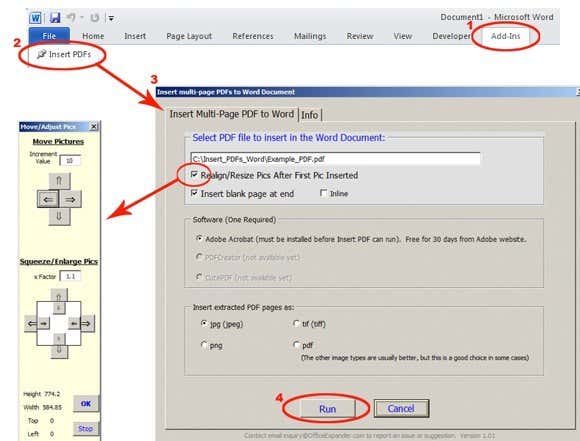
There is one other commercial program that is fairly popular which will insert multi-page PDF files into a Word document without having to worry about converting to an image first called OfficeExpander. It’s an add-on for Word and it will let you simply click a button, choose the PDF file and configure your options. For $10, it’s not a bad option if you don’t want to worry about the conversion.
officeexpander

Insert PDF into Word for Mac 2011

Let’s start off with the Mac version of Office. To insert a PDF file into Word for Mac, click on the Insert menu option and then choose Object.
word mac insert
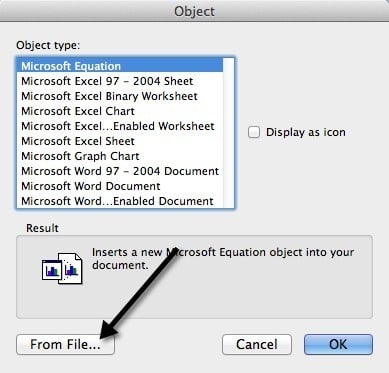
Then click on the From File button at the bottom of the pop-up dialog that appears:
mac word from file
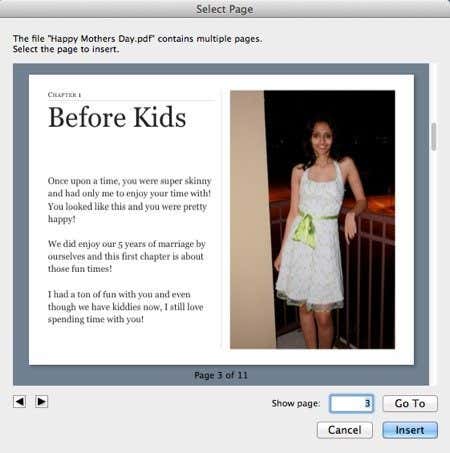
Go ahead and select your PDF file and click Open. Now the nice thing about Office for Mac 2011 is that you can actually pick the page in the PDF file you want to insert. For some odd reason, you do not have this open in any of the Windows versions of Office. On Windows, it just inserts the first page of the PDF. On the Mac, you get this nice preview window where you can see each page and insert the selected page.
insert pdf mac word
This will insert the PDF page as an image into the Word document. You cannot edit the PDF document. You can only move it around and resize it if you like.

Insert PDF into Word 2007, 2010, 2013

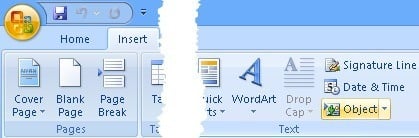
Now let’s go through the process of inserting PDF files into Word 2007, 2010 and 2013 for the PC. Overall, the process is pretty much the same, so I really only need to explain it once. To get started, click on the Insert tab on the ribbon.
insert object
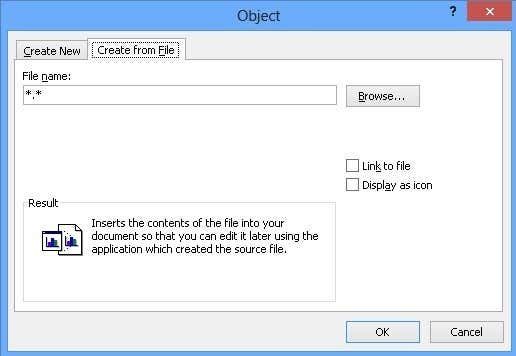
At the far right, you will see the Object button. You’ll only be using this option if you are inserting a one page PDF file. For images, it’s slightly different and I’ll explain below. When you click on Object, you’ll get a dialog box and here you will want to click on the Create from File tab.
create from file
That’s about it. The Insert ribbon is slightly different looking in each version of Office, but the Object button is still there. If you have to insert multiple images (after converting your PDF pages into images), then you click on Insert again, but this time choose Picture(s). Make sure you name the images in an order that matches the order you want them to appear in the Word document. Don’t start at 1! It’s best to use 3 digits like 001, 002, etc.

Convert PDF to Word

The last option I mentioned was converting your PDF to a Word document and then inserting the Word doc into another, which is fairly easy. The main advantage to using this method is that you can actually edit the content of the PDF file in the Word document. The main disadvantage is that the accuracy of the conversion is very poor when using free tools. You will have to shell out cash in order to get a very good conversion.
Again, Adobe Acrobat (Standard/Pro) has a PDF to Word converter built-in and it does a great job. If you don’t have Acrobat, you can check out pdftoword.com. You can convert a few small files for free using the service, but will have to purchase the desktop software for bigger files.
If you have a complicated PDF file, your results will vary. If you PDF has a lot of imported images, then your chances of getting a good conversion are lower. If the PDF file was created directly from a PDF creator application or printed straight to PDF, then your chances will be much higher.

Conclusion

As you can see, there are quite a few routes you can take for getting your PDF document into a Word doc. If you have Adobe Acrobat, it will make life much easier. If not, you have to rely on other methods like converting to images or purchasing a third-party program. If you have any questions, post a comment. Enjoy!

Best Tools for Copying a Large Number of Files in Windows


If you’ve been using Windows 8 as your main PC, you have probably noticed the vastly upgraded performance and user interface when copying files. Finally, Microsoft decided to revamp some of the core functions of the OS, which makes using Windows 8 so much better than Windows 7…sometimes.
Unfortunately, even with all the great new security and updates to core features, Windows 8 has been hampered by the dual desktop and Start Screen interfaces. I personally switched back to Windows 7 because I find the Start Screen and lack of the Start button frustrating. However, back on Windows 7, I no longer have the new more-reliable copying functions of Windows 8.

In addition to faster performance, Windows 8 also handles file conflicts and other errors way better than previous operating systems. The best part is that you can actually pause and resume copy operations, which is really useful.
copying files windows 8
However, until Microsoft fixes Windows 8 the right way, I’m going to stick with Windows 7 and that means having to use third-party apps for copying large number of files. In this post, I’m going to list some of the best file copying utilities currently out there that you can use for Windows. Depending on your copying needs, some programs are better than others. I can’t say there is one copying program that’s the “best”.
Instead of just listing them out in random order, which doesn’t really help anybody, I’m going to break them down into categories: fastest (local), fastest (network), handling corrupted data, and most features.

Fastest File Copiers (Local)

1. FastCopy 
fast copy
FastCopy has been tested by many people and the results show that it is far the fastest copying program out there for Windows. If you just need raw speed, then this program is the best.
Pros: copies extremely fast, shell integration, x64 capabilities, runs without installation, strong command line support, NSA file wiping utility for secure deleting, handles long path well, ability to see what files/folders will be affected before executing using the listing button.
Cons: Interface is very bare bones and not very intuitive, unable to pause a transfer, uninstalling is not intuitive.
Download FastCopy
2. ExtremeCopy Standard
extremecopy
ExtremeCopy Standard is a free and does a very good job of doing local data transfers really fast. For whatever reason, it’s pretty terrible for network transfers, so don’t bother downloading this program if you have to transfer data across your LAN. It’s faster than TeraCopy and very close to FastCopy.
Pros: copies data fast, integrates directly into Explorer so you can copy and paste like normal, x64-bit version, ability to pause copy operations.
Cons: standard version has no user interface, except for options, bad for network transfers, pro features are available for free in other copying programs, must install program to run.
Download ExtremeCopy Standard
3. KillCopy
killcopy
KillCopy has a horrific looking interface when you copy files, but it gets the job done very fast. It’s also kind of old and isn’t updated like TeraCopy, UltraCopier and other popular copy programs.
Pros: can resume copy on crash, parallel read/write, resolution options in case of errors or file conflicts, some boost options for faster performance, great network performance when copying, ability to securely wipe data before copying.
Cons:  terrible looking interface, doesn’t get updated very often, must be installed in order to run.
Download KillCopy

Fastest File Copiers (Network)

1. RichCopy 4
richcopy
This tool was created internally by a Microsoft employee and wasn’t released to the public until years later. It’s a bit old and hasn’t been updated since 2009, but it’s ultra fast for network transfers. However, it’s very slow for local copying, so don’t use this for anything other than network transfers.
Pros: Very fast for network copying, parallel copying, ability to pause and resume copying, ability to continue copying even if network connection lost, clean interface.
Cons: hasn’t been updated in a long time, very slow for local copying.
Download RichCopy 4
2. KillCopy – KillCopy is just a tad slower than RichCopy when performing network transfers. Unfortunately, because of it’s horrible looks and lack of updates, it’s not that popular even though it’s very fast.
3. FastCopy – This is your best bet if you’re looking for one copying program to use on a regular basis. It’s not the fastest for network transfers, but it’s very close and since it’s the fastest for local transfers, it’s probably the best copying utility overall.
4. Ultracopier
ultracopier
UltraCopier is fast, but speed is not it’s main selling point. It’s got a nice interface and has a lot of useful features. Development has slowed down, but it still gets updates every 6 months or so.
Pros: works on Linux and Mac too, supports third-party plugins to extend functionality, start/stop copy, limit speed, search through copy list, simple and clean interface.
Cons: speed is above average, but nothing special.
Download Ultracopier

Copying Corrupted Data

1. Unstoppable Copier
unstoppable copier
This is pretty much the only program that you can use to copy not only a large number of files, but also corrupt files. In terms of copying speed, it’s very slow compared to all the other programs, but that’s because it is the most reliable of all copiers. If you have any data that you believe could be corrupt like data stored on a hard drive with bad sectors or on a scratched CD or DVD, then you should use Unstoppable Copier.
Pros: can recover data from corrupt files while copying, batch mode, various settings for data recovery
Cons: very slow in terms of copying speed
Download Unstoppable Copier

File Copiers – Most Features

1. TeraCopy
teracopy
If you’re looking for a more full-featured and fancier-looking copier, then TeraCopy is the best choice. It would actually be the best one overall if it’s copying speeds were on par with FastCopy, however, it’s only about average. Where it makes up is all the features and the nice interface.
Pros: very nice interface, integrates fully with Windows, works with Windows 8 x64, stop and start, ability to recover from errors, failed file list, very actively updated.
Cons: copying speed is only average.
Download TeraCopy

Alternatives

Beyond just the above-mentioned file copiers, there are some other programs that can help you copy files in different ways. Here are two of my favorites.
1. XXCOPY
xxcopy
XXCOPY is a command line copier program with no GUI interface. However, if you know how to use the command line, it has over 230 command line switches you can use to create very specific copy operations that you can’t do with any other program. Want to copy only the files older than a certain date, larger than a certain size and with a certain word in the file name? XXCOPY can do that.
Pros: huge command line options, works with all versions of Windows, access remote network storage
Cons: only non-stop copying, can’t recover from errors, can’t pause and resume
Download XXCOPY
2. Beyond Compare
beyond compare
Another smart way to copy files is to just compare two folders and see what’s different. That’s how Beyond Compare works. Even if it crashes in the middle or there is some sort of error, you can always just run it again and since it’s comparing everything, it’ll copy over any remaining items. This is the only program that doesn’t have a free version, though, so you’d have to cough up $30 for it. However, there are lots of programmers and IT Pros that overwhelmingly vouch for this program.
Download Beyond Compare
There are a bunch of other file copier programs out there, but there’s really no point in mentioning all of them because you’ll be better off using one from the list above. If you use a file copier not mentioned above or prefer one over another, let us know in the comments. Enjoy!

Friday, March 14, 2014

26 iPhone 5s Tips You Should Not Miss

The smartest smartphone has come a long way. Apple has molded their product into a gadget with cutting edge design and features. Look at these hot ones:
  • A one-of-a-kind chip that has a 64-bit architecture.
  • A camera that works better and faster.
  • Equipped with an identity sensor that can decipher your fingerprints.
  • Comes with an operating system that’s built and designed solely for 64 bit.
To say all of those features make the iPhone 5 a smartphone that’s ahead of its time is an understatement. There’s absolutely no doubt, it leads the smartphone game. Not only that, it’s more savvy than it appears, and so much more. This is your day. I’m unleashing tips and tricks to raise up your iphone 5 experience to the next level.

Time for tips ahoy…

(View photos from left to right then see corresponding description of tips below each set of photos.)

PHOTOGRAPHY

iPhine 5_photography_hero
Share multiple photos
Tip #1 Tap multiple images to share them all at once with iCloud Photo Sharing.
Panorama
Tip #2 You can easily shoot panorama photos from left to right or right to left. Just tap the arrow to switch the direction.
Burst Mode
Tip #3 Capture multiple shots of the action — for as long as you hold down the button — by snapping 10 photos per second. And real-time analysis suggests the best photos of the bunch.

FACETIME

FacetimeMessages
Tip #4 View timestamps of your messages by touching and dragging message bubbles to the left.
Weather
Tip #5 View all your locations by pinching to see a collapsed view. To reorder locations, simply drag them where you want. Swipe from right to left on a location to delete it.
facetime_hero_Anthony
FaceTime audio
Tip #6 Now you can make audio-only FaceTime calls. On your contact’s card, tap the phone icon in the FaceTime section.

SWIPE GESTURES

iPhone 5_gestures_heroDelete a message in Mail
Tip #7 Simply swipe from right to left on messages in your inbox to quickly delete them.
Go back in Mail
Tip #8 To go back, swipe left to right from the edge of your screen.
Spotlight search
Tip #9 To open Spotlight search, swipe down from anywhere on the Home screen — such as the middle. Then type in what you’re looking for to quickly find it on your device.

SIRI

siri_hero
Tell Siri who’s who
Tip #10 Tell Siri about your relationships, such as “Erin is my wife” or “Rick is my dad.” Then you can say “Text my wife” or “Call Dad” and Siri knows who you mean.
Set your locations
Tip #11 Enter your home and work addresses in Contacts. That way, Siri can remind you to do things when you leave or arrive at either place.
Change the way Siri pronounces a name
Tip #12 If Siri mispronounces a name, simply say “that’s not how you pronounce that.” Siri will ask you for the correct pronunciation, then say the name back to you three different ways so you can choose the one you like.

CALENDAR

calendar_heroNew views in Calendar
Tip # 13 View your calendar by list, day, or month. Switch to landscape view to see a full five days.
Swipe gestures
Tip #14 Tap the month name in the left corner to change to month or year views. In Day view, you can swipe the week bar at the top to jump to days in the next or previous week.
Search for specific events
Tip #15 Tap the search icon for a list view of every event in your calendar.

MUSIC

music_hero
Create playlists
Tip #16 In the Music app, tap Playlists, then tap Add Playlist and give it a name. Now tap any song or video to add it to the playlist. You can add individual songs, entire albums, or all songs by an artist.
Create radio stations
Tip #17 To create a station in iTunes Radio, tap the + icon under My Stations and search for an artist, genre, or song. Or choose from over 250 genre-focused or DJ-curated stations.
Edit radio stations
Tip #18 Remove or add new stations to your My Stations list by clicking Edit and the minus symbol to delete stations or the plus symbol to add them.
Buy songs from iTunes Radio
Tip #19 Tap Buy on a song that’s currently playing or one in your History or Wish List, and it downloads instantly from iTunes to your library.
music_hero2Musical landscape

Tip # 20 While browsing your music collection, switching to landscape view displays a mosaic of your album covers. Swipe to scroll, pinch to zoom in and out, and tap to play.

MAIL

mail_hero
Insert a photo or video

Tip #21 When you’re composing an email, touch and hold in the message to see the “Select, Select All” menu. Tap the arrow and select “Insert Photo or Video.” Now you can choose a photo or video to attach from your Camera Roll, albums, or shared streams.
Keep your inbox clean
Tip #22 You can delete or move messages in batches. From your inbox, tap Edit, select the messages you want to organize, then tap Trash or Move.
Get back to your draft
Tip #23 Touch and hold the Compose button to switch to your list of saved message drafts.

SAFARI

safari_hero
Single sign in

Tip #24 Sign in once under Settings, and you can tweet or update your Facebook status directly from Safari, Photos, Camera, and Maps. Or ask Siri to do it for you.
Manage open Safari pages
Tip #25 Drag and drop to rearrange your tabs. To close tabs, tap the X or just swipe them off the screen.
Create web clips
Tip #26 Quickly visit your favorite websites by creating web clips for them on your Home screen. Visit the site and tap the Share button. Then select “Add to Home Screen.”
You want more tips? Navigate to Apple.com. Apple supplied all the tips featured in this post.

How to Download an Entire Facebook Album in Just a Few Clicks

Facebook is not only a great way to keep in touch with friends and family, it can be a great way to share photos. Uploading images to albums is so simple even Grandma could figure it out. Unfortunately though, downloading those images isn’t half so easy. If you’ve ever had to save an entire album of photos one…image…at…a…time, you’ve likely wished there was a better way. Lucky for you, CNET’s Rob Lightner has just the tip you need.
Download PhotoLive Free
Install the browser extension called PhotoLive and you’ll never have that problem again. It’s available for Chrome, Firefox, Internet Explorer, Safari and even Opera and it’s completely free of charge. With PhotoLive, a button will appear at the top of the Facebook window whenever you view an album. Click that button and the extension will prepare compressed ZIP archives of the album’s photos. Download the ZIP files, extract them to a folder and you’ll have every image downloaded in just a few clicks.
If this trick saves you time, make sure to share it with your friends.

How To Undo Sent E-mail and Texts


If you’ve ever sent off an e-mail or text message in haste, only to realize you forgot to include something or even worse, sent it to the wrong person, you are familiar with the panic or embarrassment that ensues. It’s damage control time. Many times you will find that you may not be able to undo something you sent out of a mistake but there will be times when you can do something about your internet gaffe. Here are some ways you may be able to save yourself and your e-mail or text from ever being seen by the eyes of another.


1. Consider waiting before sending off e-mails or texts for the day.

If you are in a rush or not fully focused, it’s best not to start writing and sending off electronic notes. And don’t go crazy e-mailing or texting if you’ve had a night out partying or if you are severely exhausted. You won’t be in your best state of mind, regardless of how great you may think you feel. You may awake to some unwanted drama and stress. It’s best not to put yourself in that situation. Particularly if it involves your work or those in your professional circles. You may want to schedule e-mail reply time, for a certain time of day or week to avoid accidentally sending messages and then you won’t have to undo sent e-mail or texts. You may want to block out other distractions, concentrate on what you need and want to say in your e-mail or text. This is a good time to sit with a warm beverage and a clear head. E-mails and texts can be therapeutic and clarifying if you don’t go overboard and you don’t feel in a pressured state of mind. This old Yiddish tailors proverb always had a profound affect on me: ”Measure twice, cut once.” The same can be said of e-mail. What you do on the internet can, and will, often live forever.

2. You can jailbreak your iPhone or other iDevice.

Jailbreaking gets mixed reviews, as you may lose your data and some are fearful their data will be exploited, if they were to use jailbreakme.com. But this is less likely, and most users report their data has remained safe and unharmed. Though, there are pros and cons, you’ll need to consider. Remember to back up your information. An external hard drive is always a safe bet. Jailbreaking is a curious game in your quest to undo sent e-mail or texts. You don’t want to end up at square one after all your sleuthing around and delete all your work. It’s important to note that jailbreaking is not illegal. According to the U.S. Library of Congress, the usage of third-party apps to jailbreak your iPhone or other Apple device is not grounds for any legal action against the user.
To jailbreak your phone, you can Download Evasi0n, as Lifehacker suggests. You’ll want to disable your passcode lock and also turn on Airplane mode, so that there are no interference as you attempt to undo sent e-mail or texts. During the downloading of Evasi0n, you can expect your phone to restart. SMS Delay and confirmSMS apps are both available in the Cydia store, after you’ve begun your jailbreak. Cydia is an app that gives you access to other apps that have not been approved by Apple. Another app that allows jailbreaking is Inbox, which allows you to send messages with undo capability. Android users may find Undo SMS to be helpful as they undo sent e-mail or texts.

3. If you use Microsoft Outlook, use the “Recall” feature.

To Recall a message through Outlook, your e-mail provider requests their e-mail provider to please delete your message prior to their client opening the e-mail. To make use of Microsoft Outlook’s feature of “Recall”, log into your account, go the Navigation Pane and click the Sent Items tab. Open the message you want to recall or undo and then click Actions and click Recall This Message. Then you can Delete the unread version of your sent message. Keep in mind that the only way this will be successful is if the other party does not have their Outlook open at the same time, and so long as they have not yet opened your sent message. This is a limited option to undo sent e-mail, as an Outlook user can disable this feature and it will not allow Outlook to delete messages on their behalf, even if you were to request they do so.
For example, you can uncheck the “Send Immediately When Connected” option in the Advanced section on Outlook’s Options screen. This may give you a few minutes to “undo” the message by cancelling the outgoing send operation before the next timed send/receive operation, when the message will be sent out.

4. If you use Gmail, use the “Undo Send” labs feature.

Screen Shot 2014-02-02 at 7.50.19 PM
Gmail offers a bit more room should you make a mistake. Each time you send an e-mail with your Gmail account, a yellow box appears at the top of the page, stating, “Your message has been sent.” You may not have noticed that right next to those words are an Undo and View Message links. You can click immediately after sending.
In Gmail’s settings, under Labs, you can enable the “Undo Send” lab feature. This will allow you to delay your sent e-mail, and offers a chance to Undo right before it’s sent off. To enable this feature, click the gear symbol in the top right of your Gmail e-mail interface. Select the Settings tab, and then Labs. When you find the “Undo Send” tab, select Enable. To complete your action, click Save Changes. Gmail will allow you to select the time frame, of up to 30 seconds, you have to undo a sent e-mail. Please keep in mind that Gmail’s “Undo Send” feature is still in experimentation stage.

5. If you sent text messages by iPhone, Android, BlackBerry and Windows 7, you can try TigerText.

If all else fails, you can still avoid your electronic mistake with the TigerText app, a free service available in the iTunes store, will offer you a chance to take back a message you have just sent, determine who receives a message you’ve sent, and disallows others from forwarding your text. It can confirm message delivery with real time notifications to let you know when a message has been received, or opened.

6. Become friends with the IT Department.

If you have sent an e-mail at work that you are regretting and want to rescind it, try connecting with the IT department at your office or company. They will be able to guide you even more effectively should a real-time crisis strike.

Wednesday, March 12, 2014

Reasons Why Computer Freezes When Playing Games

 
If your computer freezes over, when playing games, it can be an extremely annoying experience. In this article, I shall identify the prime causes of computer freezing problems and provide guidelines on how you can effectively fix them.
I have been there. Right in the heat of the moment, when you are about to blow of a terrorist's head in a closely fought game of Counterstrike, the computer freezes and you lose the shot! While controlling the uncontrollable outburst of expletives, you watch your CT team taking a beating. In such cases, if computer freezes while playing games, you need to immediately identify the source of the problem and take care of it, to prevent further freezing episodes. I am going to help you figure out the problems that could cause your computer to freeze while playing computer games in this Buzzle article.

Why Does Your Computer Freeze During Game Play?

Every single computer problem can be traced to two prime sources, which include hardware and software related issues. Rendering and operating computer games poses the ultimate challenge for your computer hardware and software and if both are found lacking in any aspect, it's bound to reflect in performance. In the following lines, you will find the prime hardware and software related problems that may cause a computer to hang up or freeze in the middle of action.

Mismatching Hardware & Software Requirements

When you investigate why your computer slows down all of a sudden while playing games with heavy GPU usage, you will find the most common reason to be mismatching hardware or software requirements. If the game demands that you need at least 2 GB of RAM for the game to run smoothly and your computer has a paltry 512 MB of RAM, the game is sure as hell going to slow down! If your processor, graphic card and software requirements are not met, the game will continue to freeze or in some cases, it won't run at all. So check out the minimum hardware and software requirements for the game and upgrade your computer to ensure that freezing doesn't occur!

Video Card Driver Problem
One of the most crucial components that play a large role in the graphic rendering of games is the video card. If you don't have the right video card driver or your existing video card driver has bugs, the game may freeze. You will need to upgrade the video card driver to solve the problem.

Overheated Video Card and CPU
Another purely computer hardware related cause that may freeze your PC is overheating. If you have been playing for hours, the mortal failing of your CPU and video card are bound to get exposed, leading to a freeze situation. When this happens, you need to switch off the system and let it cool down for a while, before you start playing again.

Background Processes Eating Up Memory
If you have too many programs running in the background when playing computer games, they are bound to eat up the working memory of the computer and cause it to slow down. Ensure that all background processes, besides the ones that are absolutely necessary are not being run, to make your game play smooth.

Virus Problems
Another cause, which is the root of most software or hardware related computer problems is a computer virus infection. Viruses can keep processes running in the background that may cause a freeze during game play. They may even corrupt the game software installed on the computer. Get one of the best antivirus software and clean out all the virus infections that might be slowing the computer down.

Outdated or Corrupted Rendering Software
A crucial component in the running of games on a computer is the rendering software like DirectX that is installed on the computer. If you have an old or corrupted version, you may experience rendering problems during game play, leading to a freeze. This can be prevented by installation of the latest rendering software.

In most cases, the freezing problem is mostly related to the graphic card driver or mismatching hardware or software requirements. Check for each of the above causes one by one, until you arrive at the right diagnosis. Make sure that all the hardware requirements, as well as software requirements are met to ensure that your computer runs smoothly and doesn't hang up when you are in the middle of action!

Tuesday, March 11, 2014

How to Make Vista Run Faster

1. Introduction
‘The Wow starts Now’, was the catch-cry at Vista’s lavish launch early in 2007. The campaign was slick and glossy, but it didn’t take long for users to complain in droves that Vista was as slow as a wet week, a resource hog and painful to work with. The cool aero-glass look wasn’t enough to offset the pain. The verdict: Vista was a cane toad in fancy drag.
Microsoft’s infrequent responses reflected, with crystal clarity, the company’s arrogance. ‘Frankly, the world wasn't 100 percent ready for Windows Vista,’ was how one spokesperson put it. Mostly, Microsoft ignored the howls of protest because it knew that Vista would sell up a storm regardless, because it gets installed on almost every new PC sold.
By mid-year, the rousing chorus chanting that the Wow had become a mere whisper stung Microsoft into action. A new campaign was launched: ‘100 Reasons You’ll be Speechless.’ The marketing hype took enormous liberties with the truth and failed to mention the heavy slug of the Vista upgrade price or the cost of the extra hardware needed to run it.
By the end of 2007, most of the early wrinkles - including missing drivers - had been ironed out via various updates, but Vista’s poor performance remained. Those who hope for Service Pack 1 to improve things will be out of luck, as the tests at this site show. Service Pack 3 for Windows XP, on the other hand, showed a 10% improvement.
Reality bites
Vista’s advantages over XP are largely cosmetic, despite what Microsoft says, while some of its drawbacks are very real. For a light-hearted take on this comparison, check this story which uses reality inversion to great effect by introducing XP as the successor to Vista and going on and on about the many improvements XP introduces.
Bottom Line: If you have a well-working XP set-up on your PC, keep it. There’s little you can achieve with Vista that you can’t do faster with XP. If you run professional graphics applications, the lack of support for the OpenGL graphics library under Windows Vista is an extra handicap. The same applies to CPU-intensive applications like video transcoding, where Vista lags a long way behind XP.
The old XP theme doesn’t look too bad if you change the blue borders for silver ones (Control Panel>Display>Themes) and replace the green lawn with a pretty picture (right-click on picture>set as desktop background). If you’re still hankering after Vista’s eye-candy, there’s plenty of it and it’s mostly free.
Vista Style is a popular choice. Vista transformation pack is another. Be warned that some of these transformations can have unintended effects on system stability.
If you still have your heart set on Vista, the best way to avoid the steep upgrade price is to buy it with a new PC. My Vista Business edition came with a bargain Compaq Presario laptop I bought on sale (twin AMD Turion cpus, 1gb of RAM, nVidia go 6100 graphics).
"Vista makes using your PC a breeze"
This is one of the first of the ‘100 Reasons you’ll be speechless’. It did that alright because, fresh out of the box, Vista Business took many minutes to reveal its full glory, the long periods of darkness relieved occasionally by the mouse pointer appearing with the circle spinning like a top.
About performance, the 100 reasons list says this: ‘New technology in Windows Vista makes your PC significantly more responsive while you are performing everyday tasks. Improved start-up and sleep behavior helps both desktop and mobile PCs get up and running more quickly ...’
Don’t believe a word of it - Vista runs many more services than XP and uses far more resources as it looks after itself. That’s no surprise, since new Windows releases have always been heftier than previous versions, and Microsoft’s architects have always relied on Intel to restore performance. Put another way, ‘whatever Intel giveth, Microsoft taketh away.’
"It’s the Safest Version of Windows Ever"
This is the third reason in Microsoft’s 100 reasons campaign. With Microsoft’s poor track record in security, that’s not saying much. Vista’s User Account Control, the great new security feature here, is about as well-thought out as Bush’s invasion of Iraq.
What is the point of forcing a user (who is also the administrator) to re-enter the same password she started the system with, over and over again, and going all dark on her every time she wants to do something? It’s worse than the constant pop-ups in XP that warn us not to open files from un-trusted sources (including those from Microsoft). At least that made you stop and think. UAC just makes you mad.
And Vista still needs the same old security software to keep it protected, despite Microsoft’s assurances to the contrary. More of that further down.
2. Optimize Windows Vista for better performance
That’s the title of one of the articles Microsoft has dribbled out of late to address the issue. It shows clearly that Microsoft is still in denial, preferring to blame the user: ‘That state-of-the-art PC you bought last year might not feel like such a screamer after you install a dozen programs, load it with anti-spyware and anti-virus tools, and download untold amounts of junk from the Internet.’
That’s adding serious insult to grave injury, but the court jesters at Redmond aren’t done yet: ‘Sometimes changing your computing behavior can have a big impact on your PC's performance. If you’re the type of computer user who likes to keep eight programs and a dozen browser windows open at once—all while instant messaging your friends—don’t be surprised if your PC bogs down.’
There you have it, you pitiful dumb users. The final insult for this user who bought a brand-new laptop with Vista Business installed is this piece of advice: ‘If your PC is rated lower than 2 or 3 [on the Vista Experience Scale], it might be time to consider a new PC ...’
The Vista Experience Index
In the Control Panel, clicking on ‘Performance Information’ leads to a panel where Vista offers to rate the Presario's performance. Taking up that option produces an ‘Experience Index’, which holds up numbers like those sullen judges who rate Olympic ice skaters.
You’d assume that the score is on a scale of 5 but it turns out to be out of 5.9, a number only the King's architects could conjure up, isolated as they are in their tall towers at Redmond. They say it's the nVIDIA GeForce Go 6150 integrated graphics chip that's letting the side down, which I’m not ready to accept. For one, the Presario handles Ubuntu’s Emerald’s aero-glass and compiz-fusion 3D with no dramas of any kind.

When you explore 'learn how to improve your computer's performance', you’ll find that Vista's first suggestion is turning off the aero-glass. Microsoft’s article makes the same suggestion, but why would you turn off the WOW already? Isn’t that why you bought Vista in the first place?
Getting rid of excess baggage
Let’s move on. Our tweaks are for simple users with a working knowledge of Windows. Most involve turning off various services Vista starts automatically, whether you need them or not. To follow the simple instructions here, please choose ‘Classic View’ on the left hand side of the Control Panel.
We’re not going near the Windows Registry, where one wrong move could stop Vista dead in its tracks - we’ll keep it nice and simple.
The first candidate for deletion is the Vista Welcome screen. This is an easy checkbox at the bottom left of the screen.


Vista’s Sidebar is also on by default. I like a sidebar but Vista’s gadgets are on the garish side and ill-matched. You can turn the Sidebar off by right-clicking the Windows Sidebar icon in the system tray> Properties>Uncheck the Start Sidebar when Windows starts box.
User Account Control is the next item on our list: Control Panel>User Accounts>Turn User Account Control on or off. Uncheck the box that says ‘Use User Account Control to protect your computer ...’
Stop auto-start applications
The simplest way to do this is to run Windows Defender>Tools>Software Explorer. Go down the list and disable the start-up services you don’t need. This is one of the few useful suggestions made in the Microsoft piece.
If you’ve already installed a security suite that includes spyware protection, you may want to turn Windows Defender off as well. Bring up Windows Defender from the main menu, click on Tools>Options, scroll to the bottom of the long panel until you see the ‘Administrator Options’, uncheck the ‘Use Windows Defender’ box and click SAVE. Confirm in the pop-up panel that you mean it, click Close, and you're all set.
If your security suite includes a firewall, you should turn Vista’s firewall off. Some security suites do this for you – check Control Panel>Windows Firewall.

Other candidates
Microsoft’s article suggests uninstalling programs that are no longer needed, and getting rid of excess files. That’s like saying that washing your car will make it go faster. The advice to restart you PC at least once a week hints at users who’ve grown tired of waiting for Vista to boot up and shut down.
User Account Control is a pain and a drain on resources. UAC’s primary purpose is to stop users from doing dumb things, like downloading suspect files or programs from unsavory sources. If you use common sense, download files only from reliable sources and have decent security software on board, there’s no need for Vista’s heavy chastity belt.
Vista has a new search feature which replaces that useless puppy of old, but it indexes your files in the background to make searches more snappy.
If you use Google or Copernic desktop search, you can turn this feature off. The easiest way is to open the Control Panel>Programs and Features>Turn Windows features on or off.

Google desktop offers a sidebar as well. Right-click on the Google Search icon in the notification area (bottom right of screen), tick the sidebar option and choose your gadgets. If you choose carefully, they’ll look neater than Vista’s garish collection.
Vista’s built-in disk defrag utility is enabled and set to keep your files tidy in the background. This is overhead and overkill, and Vista’s defragger does a pretty poor job anyway. You can turn it off this way: Control Panel>Performance information and tools>Advanced Tools>Open Disk Defragmenter. Uncheck ‘Run on a schedule’.
Automatic backup is another candidate for deletion. It works in the background to back up files as you work. It’s a nice idea but you may not have an external drive, or you don’t have it connected all the time, or you’re running Vista on a laptop and backup your work when you get home. Most likely, you already have your favourite backup and defrag programs sorted out.
Antivirus Software can bog a PC down faster than a mud slide. Norton, McAfee and Trend Micro used to be the worst offenders but Zone Alarm Internet Security Suite is the new champ. The suites that have the lightest footprint and interfere the least are ESET NOD32/ESS, Avira/Antivir and AVG. The first two also provide the best malware protection currently available.
Laptop Users have found that Vista sucks battery juice like a Hummer guzzles gas. So much for Vista smarter power management capabilities. I said that Aero-glass wasn’t a big drain on performance but it is a drain on batteries because the video is doing the work, and the video card consumes power.
When you want to get the most out of your batteries, turn off the aero-gloss. You’d assume that you do this under Personalization but Microsoft likes to play hide-and-seek with us as usual – go to Performance Information>Adjust Visual Settings>Visual Effects and select the radio button next to ‘Adjust for best performance. That turns Vista Business into Vista Home Basic but it conserves precious juice.
Tuning for Performance
The easiest option on a PC with 1gb of RAM is to double it. A simpler and cheaper way to raise performance is Vista’s Ready Boost feature, which uses the flash memory of a USB stick as additional RAM. Simply plug the USB flash drive in and select My Computer, right-click on the USB drive, select the Ready Boost tab, choose ‘Use this device’ and select as much space as you can. 2gb is optimal for 1gb of RAM.
It makes a small difference to overall response, which will vary from PC to PC. I ran a simple benchmark often used by PC mags called PCMark05. Without the USB stick, PCMark05 came up with 2431. With a 2gb Cruzer flash drive, the number was 2741 – a 13% improvement. Not bad, but it doesn’t feel that much faster.
Bear in mind that flash drives vary dramatically in read/write speed, even the newer USB2 types. The Cruzer is among the faster ones but a Lexar Lightning might’ve come up with a slightly better number.
Disk Performance can be optimized for SATA disks, which are the norm these days. Here you can enable write-caching and advanced performance.
This will speed up disk access but it has a downside: if you lose power suddenly, you’ll loose whatever data was sitting in the cache at the time. If you’re running Vista on a laptop as I am, that’s okay since the batteries take over when the power cuts out.
To enable better hard disk performance, right-click on your hard drive in ‘My Computer’ and go to Hardware>Properties>Policies where you’ll find the check boxes we’re looking for.
Superfetch is a new Vista feature that learns your habits and pre-loads the apps you use most often and keeps them on stand-by after you close them. It makes start-up a little slower but speeds up launching programs. The experts say that superfetch needs 2gb of RAM to show a benefit, or at least a USB drive on Ready Boost. With systems running 1gb of RAM, the advice is to turn it off.
I tried both settings - Start>Run> type ‘services.msc’> scroll down to superfetch >right-click>properties>change startup type to disabled and status to stopped. Turning it off produced no improvement in speed of any kind. Against the odds, the Presario seems to run better with superfetch left on.
This is one of those things that comes down to individual set-ups: by the time I got this far down the list, I’d cut the number of running services down from over 70 to 45 (see below) and Vista was using just over 500mb of RAM instead of over 700 at idle. That meant I had some spare RAM left for superfetch to work on. On systems with less available RAM, it may slow things down – there’s only one way to find out.
The Page File is a small part of the hard disk Windows uses as ‘virtual memory’. In XP or Vista, you can adjust the size of the page file but just how much difference it makes is a hotly debated topic. Bring up the Control panel, choose System>Advanced System Settings. Choose Settings in the ‘Performance’ panel and then ‘Advanced’ in the Performance Options panel. Now you see a page file size, set to a minimum of 1500 here (if you have 1gb of RAM). Click on ‘Change’ and set the maximum number to 2500, then click ‘Set’ and ‘Apply’ and close the panels with OK. The common advice is to make the upper number 2.5 times the actual RAM.

That’s about it for the easy tweaks. By now you should have a Vista setup that works reasonably well. The next section explores an area that is more tedious but it may help to improve performance by another 10%. It’s the law of diminishing returns.
Serious Tweaks for Serious Types
Unless you’re a competent user, you might want to skip this section. When you turn on your system, Vista starts up a host of background services for applications you may never use – Network Printing or FAX and Smartcard services, for example, and offline files and tablet PC and blue tooth stuff. Most of Vista’s services are much more obtuse, and you’ll need a reliable guide to help you decide whether you do or don’t need them.
I used two guides to help me: this one from Black Viper's well known website, and another a stumbled on. The two guides don’t agree, which adds some drama to the tedious exercise. If in doubt, go with Black Viper’s ‘Safe’ settings, and don’t let the name put you off.
The second list is a bit more radical and best left alone unless you’re looking to trim every bit of excess fat from Vista’s bulk. If in doubt, don’t disable a service but set it to manual. That way, a program or service that depends on it can prod it into action.
To find the list of services you can use RUN and key in "services.msc", but a program like Starter from Codestuff is a better option.
Starter makes the job a little easier with one click descriptions of running programs, services and processes. Just double click on the service you highlight and a panel pops up telling you what it is. Starter also has a section where you can easily check the services that keep ingratiating themselves in the start-up process.

Unexpected Rewards
After hours of fiddling, we've got the number of start-up processes down to 45, and the RAM that Vista chews up just idling is down to 500mb. Another reboot produces a big surprise: the login panel pops up in about 40 seconds, and it takes another 50 to get ESET’s signature database updated, the icons on the desktop settled down and Google’s sidebar up and working. Google desktop/sidebar runs 3 processes and uses over 20mb of RAM so it has an impact on performance.
Still, programs are fast to launch and files quick to open, and I'm beginning to like using Vista rather than just admiring the show. What we have now is close to optimized XP performance, which is hard to believe after reading so many stories about Vista, the slug.
Most of it was easy. Just what difference disabling the extra services made is hard to measure but it gives Vista much-needed elbow room on a machine with 1GB of RAM.
Keeping the Edge
Windows tends to get clogged up over time, and Vista is no exception. It’s worth cleaning out temporary files, the gunk that builds up in applications and in Windows, but registry cleaners that boast of restoring your PC to as-new performance aren’t worth the money. The only software that boosts performance is a good disk defrag utility, and that doesn’t involve the risk of breaking the fine china in Windows’ special cabinet – the registry.
The experts say that the best way to rejuvenate Windows is to re-install it from scratch. For most of us, that’s about as much fun as doing tax returns. And it takes longer, given the time it takes to restore all your data and your programs, and to update Vista.
An easier way to do this is to take a snapshot of our trim, taut and terrific Vista installation with disk imaging software like Acronis True Image (or the free version of Seagate Disk Wizard, if one of your HDs is a Seagate or Maxtor drive).
My Presario didn’t come with a Vista install DVD – just a restore partition – so a disk image is essential. Now I have an easy and complete emergency option that restores my last optimized configuration, not the one HP put on the restore partition a year ago.
And remember, it’s not the stuff you pile on your hard drive that adds the performance-strangling bulk, it’s Windows. Just take a look at this chart I found on WikiPedia
The table doesn’t tell the whole truth, though: the specs given for XP above have increased dramatically over the last five years, after many updates and major revisions like Service pack 1 and 2. In fact, at the time of Vista’s release, Windows XP takes as much hardware to run well as is listed for Vista in the table above.
The old PC I’m writing this on reflects this trend perfectly: it started life back in 2002 with a 600mHz CPU, 128mb of RAM and a 20GB hard disk, which seemed overkill at the time. Several upgrades later, it runs a 2.4gHz CPU, 1GB of RAM, and a 320GB hard disk. The original 20GB HDD – a Seagate Barracuda that is still doing duty for file backups – is now just big enough to hold Windows XP (including restore, page file, hibernation file and trash can).
If this trend continues with Vista, and there’s no reason to assume it won’t, by 2012 the new OS will need a CPU 5 times more powerful than current issue, 8GB of RAM and 150GB of disk space. So be prepared for the occasional hardware upgrade.

How to block Facebook App requests

Not all are interested in playing games on Facebook and people generally get irritated with too many notification alerts from different games or invites from different Facebook Apps. There is a work around for this, you can block Facebook apps individually.
Follow the following steps to block Facebook app and you will stop getting notifications till you unblock it.
  • Login to your Facebook account
  • Click on Facebook Settings icon and click on ‘Privacy Settings’.
  • On the left side click on ‘Blocking’
  • Scroll down and go to ‘Block apps’
  • Enter the name of an app Example: FarmVille and hit enter.
  • You can always come back to this place to unblock any of the blocked app.
block facebook apps
If you have already given an app all your details like email ID then the app owner can always send you emails even after removing authorization for the app in the App Center on your app settings. Once you block an app, you will no longer get any requests, email from the blocked app or they cannot even access any information about you unless you make it public. You always have an option to unsubscribe from the app entirely at the bottom of the email that app sends.
block facebook apps - short cut
You even have an option to do this directly. To the right top corner you will be able to see all the requests. Move your cursor over this request and you can see cross icon. Click on it and select block. Once you block it, the blocked app will appear in the ‘Block Apps’ list under Privacy Settings.