Showing posts with label advice. Show all posts

Wednesday, April 23, 2014

This Is Why You Should Consider Internet Marketing!


In my quest to find the ultimate work from home opportunity, Internet Marketing appealed to me the most because I did not have to make any calls to anyone. I didn't have to ask the people in my life to buy anything, and I didn’t have to handle any product shipments. But most of all it attracted me because it was a pretty simple technique that had the potential to make a lot of money. People were leaving their jobs to work as internet marketers from home and they were making a nice chunk of change in the process. I wanted the same liberty.
Internet Marketing is one of the most lucrative and profitable businesses out there. The internet is our future and our world is forever evolving its technology to greater capacities. You can't go wrong with the internet business. Everybody is there. It has taken over the traditional market place. There are things you need to know about why internet marketing works.
1. It Increases Your Brand Awareness
Online Branding is the main reason for starting an Internet Marketing campaign. If you have any kind of idea, song, product, church, etc, you will want to use internet marketing to increase awareness to the masses. Improving your credibility online is vital to your success as a brand.
2. It Is Cost Effective
Marketing is important when starting a business, selling a book, or any other idea you want the world to know about. Technology is our future and our now. Meeting these changing demands will increase your brands visibility, and increase your sales. Television, radio, print ads, and word of mouth are still effective tools for marketing. But having an ongoing internet marketing campaign will bring life to your business and keep you fresh and relevant in this continually developing technology.
3. The ROI (Return On Investment) is Greater
A well-organized internet marketing campaign will bring in an abundant increase in sales. Whether through paid or free marketing [and yes you can do both]. Automatic purchasing power compared to driving to a store location or receiving a order form by mail will result in more revenue for your business. Because of the viral nature of the internet keeping it on going and expanding, it keeps a substantial flow of leads and an excellent return on investment.
4. You Can Target Specific Markets
The internet allows you endless opportunities to personalize your message to every type of audience. It always provides availability to your core audience. Your business can give people a 24 hour channel for finding the products and information they want and need. It also helps to maintain good communication to the consumer by keeping them interested and increasing customer loyalty even after they have purchased a product or visited your site for more information. A good internet marketing campaign will also work to help close a sale to someone who is undecided about their potential purchase.
5. It Increases Your Website Visibility
Without traffic driven to your website no one will know you exist. Traffic to your site, conversions, number of sales or subscribers, links, and brand image are just a few of the ways you can determine your websites success from your campaign. There are numerous things you can use to drive traffic to your business website. The more people who visit your site the more possible your chances are at having success. And you can do this for free.
Now that you have more information on why internet marketing works, you should get right to work with your brand awareness campaign! That is what I am doing! You should do it too! Let me encourage you to be patient with your process and stay consistent with driving traffic to your site. This will ensure your success on the internet.

A Guide to Cheap Android Tablets


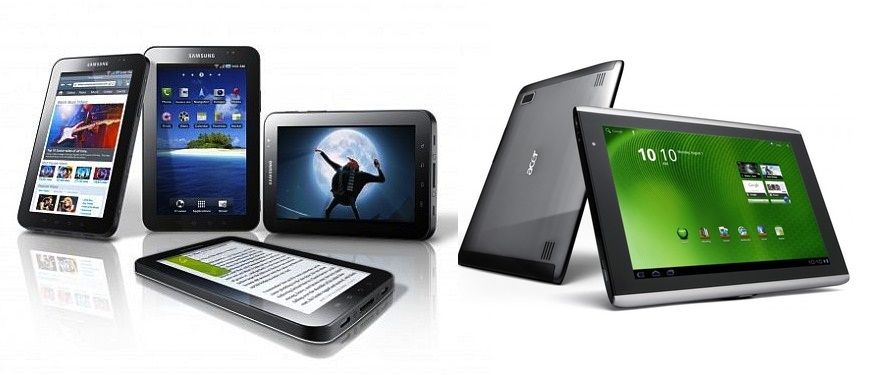
If you are a gadget fanatic, you ought to have your hands upon the all new android tablets, which offer its users various features and great looks. The page below has been constructed with a few tips to help you buy Cheap Android Tablets matching to your preferences and needs.
Tablets make a huge demand these days and there are several reasons to why these devices are making a popular choice for various activities like reading, making notes, feeding and storing data, keeping up with the social media and surfing the internet. In short, you can deploy a tablet for various productive results and jobs. Here below, we have mentioned a few quick tips to help you know why are the tablets making a better demand in the market these days and how you can put your hands upon the latest range of versatile and Cheap Android Tablets.
1. Android tablets are designed with countless device configurations and ample storage to allow its user with easy and convenient feeding of data and personal information.
2. The tablets have Retina-like or even higher resolution display quality.
3. It is very easy to manage all the on-board files with an Android because the file system of these devices works with a traditional computing environment. You as the user can manage your files easily with an Android file manager or via a connected PC also.
4. Android are available with a micro SD card reader, with the help of which, you can expand the storage capacity of your gadget. Videocon Tab VT10 is a popular tablet from Videocon having a 10 inch touch screen interface running on Android 4.1 Jelly Bean operating system. The memory of this tablet can be increased to 32 GB with a micro SD card and above that, it has 8 GB ROM and an additional 1GB RAM to offer a new user experience to its user with the latest technology and product innovation.
If you wish to enjoy a true-to-life experience, you should buy an tablet because with the help of these all new android tablets, you can watch movies in high definition, search and browse the web easily, install third party applications, use all the social networking sites and much more. In short, the android tablet can serve you with an ultimate gadget in your hand, which is both user as well as pocket friendly.
And yes, do not be under the impression that the tablet is an expensive gadget, the price of the android is very less as compared to the other similar products available in the market. So, what are you waiting for? Buy your android tablet and be ready to experience everything that you have always imagined.

Tuesday, April 1, 2014

Understand Why iPhone Charges Fast First and Then Slows Down

If you own an iPhone, iPad or iPod, you may have noticed something a little odd about the way it charges: fast up to a certain percentage and then slower and slower as it gets closer to 100%. I noticed this a few weeks back and since I know practically nothing about current, electricity, volts, amps, chargers, etc, I wasn’t sure if this was the way my iPhone was supposed to charge or not.
Eventually, I tested it out on the iPad too and realized that it did the same thing. It would charge to around 70-80% pretty fast and then would slow down significantly before getting to 100%. Actually, from my calculations, the time it took to go from 1% to 80% was about the same time it took to go from 80% to 100%!
In this article, I’ll explain the little I learned and understood about charging Apple products and hopefully will give you a bit of an understanding of what exactly is going. If you are an engineer or someone who knows a lot about this topic, feel free to post your thoughts in the comments!
iphone charge

Power Sources vs Chargers

The first thing to understand is the difference between a power source and a charger. You probably have said the statement below at least once in your life in you own any Apple device: “Where’s my charger?” 
Unfortunately, this statement is technically inaccurate. The cable and adapter that you plug into the wall is actually just a power source. It draws current from your wall and delivers a set amount of amps and watts to your iPhone, iPad or iPod. The charger is actually in the device itself. That is why you can use an iPhone charger to charge an iPad or an iPad charger to charge an iPhone.
The charger inside the iPhone or iPad controls the flow of current into the device, not the adapter. If you ever have checked, the iPhone adapter is rated at 5 watts and 1 amp. The iPad adapter is rated at 10 watts and 2.1 amps.

The iPhone and iPad Charger

The battery inside your iPad or iPhone is a rechargeable lithium-ion polymer battery. It’s what Apple uses for all their devices, including Mac computers. Apple has a great page that explains a bit about their battery technology, but the best part is this chart they provide:
apple batteries
Let’s take a look at this chart. On the Y axis we have Current Voltage (A/V). A is for amps and V is for volts. The first number is amps and the second one is volts. On the X axis we have the stages of charging: fast charge and trickle charge. Stage 2 is what explains why your Apple device slows down and takes more time to charge when you get past 80%.
As you can see, the number of amps remains at 1 (for the iPhone, 2.1 for the iPad) for the first two hours and then drops off over the next two hours all the way down to zero when the device is fully charged. You have probably also noticed that sometimes when you disconnect your iPhone or iPad from the charger, it could be anywhere from 96% to 100%. This is because of the trickle charging. When it reaches 100%, it shuts off. If the battery starts to drop, it will kick back in around 96% and start charging again slowly.

Why Do We Need Trickle Charging?

So this bears the question: why the heck do we need trickle charging? Why not just fast charge all the way to 100% and be done with it? Well, apparently it has to do with the chemistry behind lithium ion batteries, which I have no idea about. In a nutshell, lithium ion batteries react very badly to being over-charged and therefore you never want that to happen.
Trickle charging solves this problem by reducing the current at the latter part of the charging and completely stopping it once the battery is fully charged. That is why it is also not harmful to leave your device connected to a power source even after it has fully charged.
In conclusion, the charger is inside your device and the thing you plug into the wall is the power adapter, not the charger! All this technology is there to basically preserve your battery life over many charge cycles. If you have any questions, let us know in the comments! Enjoy!

Friday, March 28, 2014

Five Best Computer Maintainance Practices

A few years ago, Steve King, Johnnie Putman, and the rest of the gang at WGN Radio's Website Wednesday night came up with what we call the "weekly fab five," the five things you should do every week to keep your computer running in tip-top shape. Here is what we recommend.

1. Update your Virus Definitions

At the end of July 2005, Symantec's Norton Antivirus knew of over 70,000 different computer viruses. Worse still, nearly 5,000 new viruses are discovered each and every year.
Before you panic, though, there are two things to keep in mind:
  1. Even though it sounds like there are a squillion viruses out there, there are really only a couple hundred different viruses actively floating around the net at any point in time. The rest exist only in the laboratories of evil virus scientists.

  2. Many viruses are easy to detect and neutralize before they do any damage, but only if you have an antivirus program using the latest virus definitions. Virus definitions help your antivirus program both recognize and (hopefully) destroy known viruses. What happens if you don't have the latest virus definitions? Well, your antivirus program may not be able to detect some of the newer viruses floating around the Net, putting your computer and files in danger.
Fortunately, updating your virus definitions is a snap. How do you do it? That depends on the antivirus program you use. Norton Antivirus has a "Live Update" button built into it; click on the button, and Norton automatically downloads and installs the latest virus definitions from Net. McAfee VirusScan has a similar update function (go to File > Update VirusScan).
Live Update in Norton System Works
If you are unsure of how to update your virus definitions, visit the Web site of your antivirus software manufacturer and look for their "download," "update," or "technical support" section. And if you are on AOL, you can find the latest definitions for most antivirus programs at keyword: virus.
Do Mac users have to update their virus definitions every week? The answer is an emphatic YES! While there are certainly more PC viruses than Mac viruses, the possibility of new Mac viruses, while slight, is still greater than zero. And the possibility of future, cross-platform viruses (viruses that infect both PCs and Macs) is also quite real. Better safe than sorry.
By the way, if you want to know more about what viruses are, how they spread, and how to avoid them in the first place, check out
http://www.g4tv.com/techtvvault/features/34602/Viruses_Explained.html
So, the first thing we should do every week is update our virus definitions. The second thing we should do is ...

2. Run Windows Update/Software Update

Okay, I'll admit that running Windows Update or Apple's Software Update once a week is overkill. Sue me.
Windows is aptly named because it is full of holes. There are several, inadvertent 'open doors' (or 'security holes') in the Windows operating system that COULD conceivably make your computer vulnerable to outside attack. In specific, a mean-spirited hacker COULD 'walk through' one of these open doors on your Windows PC and read any file on your computer, delete specific files or programs, or even completely erase your hard drive.
When the folks at Microsoft discover a security hole, they usually release a software patch to close it. Without the patch—and there are MANY—your computer may be open to outside attack.
Fortunately, like updating your virus definitions, downloading these patches couldn't be simpler. Built into every PC since Windows 98 and into every version of Microsoft's Internet Explorer since version 4.0 is something called "Windows Update." Windows Update is an easy-to-use tool that helps you ensure that your PC is running the absolute latest Microsoft software patches and drivers.
Here is how to use Windows Update to download all of the security patches Microsoft has released since your PC was made:
  1. Connect (or logon) to the Internet.

  2. Open Internet Explorer and go to Tools > Windows Update.
    Tools > Windows Update in Internet Explorer

  3. On the "Welcome to Windows Update" web page, click on the "Express" button.
    Windows Update page with the Express button highlighted

  4. Microsoft will scan your computer looking for any updates your computer may be missing.
    Checking for latest updates on your computer

  5. The first time your run Windows Update, Microsoft may ask you to "validate" that you have a legal, licensed version of Window. Just click on the "Continue" button
    Genuine Windows Validation
    You may be taken back to the "Welcome to Windows Update" screen after you go through the validation process. Just click on the "Express" button to continue.

  6. Eventually, you'll see an "Express Results" screen showing you all of the high priority updates you need to install. How do you install these updates? Just click on the "Install Updates" button.
    Express Results screen in Windows Update

  7. Microsoft will download and install the updates
    Installing Updates Screen in Microsoft Windows
    Then, when it is done updating Windows, Microsoft will display a screen telling you that "You have successfully updated your computer." Click on the "Close" button to continue.
    Installing Updates
So, you're done, right? Not exactly. There are two things to keep in mind:
  • A lot of critical updates require you to restart your computer once they have been installed; and
  • Go back to Step 2 and keeping running Windows Update over and over until you finally see the lovely "No high-priority updates for your computer are available" message. YOU ARE NOT DONE UNTIL YOU SEE THAT MESSAGE.
    No high-priority updates for your computer are available message
If you have never run Windows Update before, expect to see more than one critical update... and expect the download to take just a little longer than the gestation period of an Asian elephant. Once you have downloaded all of the Critical Updates, though, you probably won't see more than one new critical update every couple of weeks. [Microsoft releases new critical updates, if necessary, on the second Tuesday of each month.]
The Mac OS has its own version of Windows Update called "Software Update." You can find it at Apple Menu > Control Panels > Software Update (I think). Click on "Update Now" and follow the on-screen prompts. Chances are you'll only see new updates from time to time.
Okay, two down, three to go. The next thing we should do every week is ...

3. Run ScanDisk/DiskFirstAid

ScanDisk is a built-in tool from Microsoft that scans and, in most cases, repairs errors on your hard drive. These errors usually occur when your computer crashes and has to be restarted.
The technical explanation is that
Your files are stored on your hard drive in data groups called "clusters", sometimes these clusters can become "cross linked" with other clusters belonging to other files, or they can simply become "lost" from the rest of its fellow clusters.
When you run scan disk the utility saves the "lost" file fragments into new files that you can view called "check" files (*.chk). It also repairs cross-linked clusters by making a copy and pairing it to two separate families (the original and the cross linked one).
[ http://pchelp.ncms.org/HelpDocs/Scan_Defrag/Scan_Defrag.htm ]
In other words, ScanDisk makes your computer a little happier and a heck of a lot more stable.
To run ScanDisk in Windows 95/98/ME, just go to Start > Programs > Accessories > System Tools > ScanDisk. If you have Norton Utilities or Norton System Works, use Norton Disk Doctor instead of Microsoft's ScanDisk. Disk Doctor is a little more thorough.
Windows XP doesn't come with a ScanDisk utility per se. Instead, XP uses a revamped version of the classic DOS utility "CheckDisk." To run CheckDisk, go to Start > Run and type chkdsk
For Mac users, Apple offers something called DiskFirstAid. To run DiskFirstAid on your Mac, double-click on the DiskFirstAid icon in your utilities folder. And, like the PC, if you have Norton Utilities on your Mac, use Norton Disk Doctor instead of Apple's DiskFirstAid. Disk Doctor is a little more thorough.
The next stop on our weekly hit parade is ...

4. Run Defrag

ScanDisk stabilizes your computer. A disk defragmenter ensures that, if a particular sector on your hard drive fails, you only lose a few files instead of a lot. According to our friends at WhatIs.com (the best technical glossary on the Net, and one of my top 21 Web resources),
When a file is too large to store in a single location on a hard disk, it is stored on the disk in discontiguous (not adjacent) parts or fragments. This fragmentation is "invisible" to the user; however. The locations of the fragments are kept track of by the system. Over time, disk access time can be slowed by fragmentation since each fragmented file is likely to require multiple drive head repositionings and accesses. (There's nothing you can do to prevent fragmentation, by the way.)
A disk defragmenter is a utility that rearranges your fragmented files and the free space on your computer so that files are stored in contiguous units and free space is consolidated in one contiguous block. This also improves access time to files that are now contiguous.
To run Window's built-in Disk Defragmenter program, go to Start > Programs > Accessories > System Tools > Disk Defragmenter. If you have Norton Utilities or Norton System Works, use Norton Speed Disk instead of Microsoft's Disk Defragmenter. Speed Disk is a HECK OF A LOT more thorough.
The last time I checked, Mac's didn't come with a built-in disk defragmenter. Don't pout, though—Norton Speed Disk (in Norton Utilities ) works wonderfully on a Mac, and I seem to remember that Alsoft makes a pretty good Mac defrag program called "DiskWarrior."
So, we've updated our virus definitions, downloaded and installed the latest critical updates, made our computers more stable by running ScanDisk or Disk Doctor, and made our computers a little faster by running a disk defragmenter. The last thing we need to do every week is ...

5. Backup Your Data

Here is a frightening thought: imagine what would happen if your computer just up and stopped working. All of your programs, all of your emails, all of the pictures and files you have downloaded from the Net ... gone. How would you react? Heck, how would you SURVIVE?
In the world of computing, you either have a disaster recovery plan or you don't. Fortunately, backing up your critical data is no harder than downloading new virus definitions or running a disk defragmenter.
Well, maybe it is a *LITTLE* harder.
Fortunately, if you have a PC, Fred Langa has written a *WONDERFUL*, 12 step article titled "Fast, Easy Backups For Win98 / ME / NT / 2K / XP" at
http://www.langa.com/backups/backups.htm.
This article tells you everything you could possibly want to know about how (and why) to back up a PC. Read it. Live it. Love it.
Microsoft also has their own "Backup Basics" article at
http://www.microsoft.com/athome/security/update/backup.mspx
that is both in-depth and easy-to-read. And for information on how to backup a Mac, check out
http://www.drmac.net/framesets/resourceframeset.html .
So, that's it. Update your virus definitions, run Windows Update (or the Mac equivalent), run ScanDisk, run a disk defragmenter, and backup your data. Do these five things in order ... each and every week ... and both you and your computer will be a heck of a lot happier.

Tuesday, March 18, 2014

how the Computer can help Teach Your Kid to Read

Reading is a fundamental skill that most children develop early in life, but some children experience difficulties when trying to learn to read. Although books and learning techniques are designed to help children learn to read, not all of them capture a child's imagination and make him want to learn. Because of this, computer games, educational software and other entertaining computerized options may succeed where other reading tutors fail. 


  1. Reading Games

    • Reading games are available as both online activities and standalone software. Websites such as PBSKids.org and the Nick Jr. Boost subscription area at NickJr.com provide preschoolers with reading and language-skills games based on popular characters from their respective networks. Software games such as those the "Reader Rabbit" series and "Bookworm" series found at the Software for Kids website teach reading and spelling to children from preschool age and up. Both types of games present reading activities in a manner that is fun for children, helping them to read while creating positive associations with the act of reading itself. Some of these games are designed for parents to play along with their children, while other games are self-guided so that children can play them alone. Many of the games have received official recognition from parents' and teachers' groups, such as the 150 awards won by the "Reader Rabbit" series and the WiredKids Safety "Best of the Web" award that PBSKids.org has won twice.

    Educational Software

    • Not all reading-related software comes in the form of games. Some reading software such as Starfall Education's "Learn to Read" series and Learning Today's Education Software Review Awards-winning "Smart Tutor" software provide reading practice and instruction for preschool and elementary-aged children. The lessons taught by educational software titles such as these are typically more focused than those found in games because the primary purpose of educational software is to teach rather than entertain. Depending on the format of the specific program, quizzes and other reading tests may be included in the software to help monitor the development of your child's reading skills.

    Online Tutoring

    • Some websites offer educational materials designed to help both children and adults with their reading. Preschool-focused websites such as Montessori Home's LearnToReadFree.com offer reading lessons and activities aimed at younger children, while all-ages websites such as K12Reader.com offer lessons, activities and worksheets designed by actual teachers to help elementary-aged and older students strengthen their existing reading skills. These online tutoring websites are often free, although the amount of content that they contain and the quality of that content varies greatly from one site to the next. The interactivity of games and other educational software is often missing from these websites. Those aimed at younger children tend to feature animations and basic interactive features to hold a child's attention.

    Reading Videos

    • Online reading videos range from read-along animated shorts to story time videos in which someone reads a book for the camera. Reading videos can be found on a number of streaming video websites such as the "Rock n' Learn" video series on YouTube.com, while commercially released reading videos can be found on subscription-based services such as the "Netflix for Kids" portion on Netflix and Amazon.com's Amazon Prime. Streaming episodes of long-time favorite shows such as the Daytime Emmy Award-winning "Reading Rainbow" can be watched online. As with some online tutoring websites, online video content offers no interaction to children, so it may not always be as effective as other educational software titles.

Friday, March 14, 2014

11 Tips For Tech Etiquette In Office You Need To Know

As tech invades more and more of our personal and work lives, it is increasingly important that you are aware of these tech etiquette in office tips.

1. Mobile Phone Use

Everyone talks loudly when they are on a mobile phone–fact. There’s no avoiding it, as noise on either end often makes being heard and hearing others difficult. Good tech etiquette in the office suggests that you should consider doing the following:
  • keep the call short,
  • move to an area where you will not be disturbing others,
  • arrange a call on a landline (better call quality means less shouting).

2. Social Network Use

Unless you are the social network tzar for your company or it’s part of the job, tech etiquette in office suggests that you should keep your social network use to a minimum. Find out about what is permissible by having a read through any IT policy and procedures. Take care to note whether your computer use is being monitored and limit social networking to accepted points in the day (usually lunch break).

3. Surfing The Web For Fun

Leave surfing the web for when you are at home or on breaks. Surfing web sites that interest you may help kill a few hours, but it also can prevent you from getting things done. Avoid this distraction at all costs and focus on the task in hand.

4. Device Charging

It is bad tech etiquette to unplug a device that is charging for someone else. Chances are, you will forget to plug the thing back in and may cause your colleague issues when they are out on the road or in a meeting. Instead ask to swap the charging device out or hunt for another plug socket.

5. Instant Messaging Abuse or Misuse

Instant Messaging (IM) has become an increasingly popular way of helping colleagues stay in touch. Less formal than an email, it allows short, sharp communication that otherwise might have needed a phone call. Be to keep your messages short and to the point sure when you are using IM. There is no harm in having your personality shine through in your messages, but steer clear of waffle and joke messages as you are likely to get ignored by colleagues when you actually need them to respond quickly.
If you receive a message, it is expected that you should reply quickly and succinctly–assuming that you are not in a meeting or having a person-to-person conversation.
And don’t use it to keep up to date with friends on the company dime.

6. Using Laptops in Meetings

Keep your laptop use in any meetings to a minimum. Only use your laptop for the benefit of the meeting and don’t start working on something else. If the meeting is focused and keeps to an agenda, there is no reason you should need use this as an opportunity to surf the web or respond to email.
If you find yourself in meetings where you could be more productive elsewhere, do your bit and excuse yourself. Don’t start messing about with your laptop and distract others in the process.

7. Printer Supplies

If you happen to run the printer out of toner or ink, do not leave it for someone else to replace. Do it yourself. If you end up using the last of the printer supplies from the stock cupboard, make sure you tell or email the person responsible for ordering replacements. Don’t assume that someone else will sort it. Same goes for paper or if you see any unusual flashing lights on a printer (they usually mean something).

8. Large Print Jobs

If you are going to send a large print job to a printer that will clog it up for more than a few minutes, do this:
  • print on a printer that is rarely used, so it will not be noticed
  • print at a time when others won’t mind,
  • print after you’ve given your colleagues a warning.

9. Work Email Is For Work

Don’t use your work email to keep in touch with friends and family. This is for use for work only and can help you keep a good separation between work and home life. With the proliferation of great email services available from the likes of Google, Microsoft and Yahoo there is no reason why you would need to use your work email in this way. Instead set up a separate account.

10. Bringing Viruses To Work

Easier said than done. Make sure that any computers at home have up-to-date antivirus protection and regularly scan any USB drives that might come in contact with both work and home machines. Better still if you can avoid it, do not use USB drives for moving data between devices; instead, use cloud services, as these have built in virus-checking to prevent you from inadvertently spreading viruses on these services.

11. Get To Know Your IT Policies

Spend some time reading the IT policies for your work place. Whilst there are common threads across most businesses, there will be some nuances that are particular to your job and working environment. Your employer is entitled to monitor your IT use if explicitly stated within policies that are reference by your employment contract. So getting to know what you can and can’t do may at least save you a little bit of embarrassment or it may save you your job.
Get in touch with me in the comments section if you have any other tech etiquette in office top tips.

7 Tablet Hacks That Will Make You Leave Your Laptop at Home

shutterstock_130320863Tablets have come a long way in recent years. Once marketed as entertainment-only devices, technological advances have narrowed the separation between work and play. A tablet may not be as functional as your laptop out of the box, but a few tweaks and accessories can transform it into a work-worthy device. Here are seven tablet hacks that will make you leave your laptop at home:

1. Print Wirelessly from Your Tablet


Printing from your tablet isn’t as intuitive as you’d hope. With a desktop or laptop, you just plug in your cable, install your driver, and you’re good to go. On a tablet, however, you must connect wirelessly to a network printer.
Cloud Print by Google makes this easier by walking you through the steps. Just go to your Chrome settings, select “Advanced Settings,” and click on “Cloud Printing.” Follow the instructions to connect a regular printer or select a cloud-ready wireless printer, and you’ll be able to access your printer from any device that’s running Chrome.

2. Expand Your Storage into the Cloud

Most tablets come with 32 or 64 GB of storage space. With this capacity, you can store a few documents, photos, and videos, but power users expect more storage for their dollar. Thumb drives and SD cards can expand your options a bit, but cloud storage is necessary for projects and programs that require a lot of space.
Google Drive, Dropbox, and Amazon Cloud all offer free cloud storage options. These companies also have paid services for premium capacity. Google offers 100 GB of space for $5 per month — a bargain for having all your important files accessible on any device connected to Wi-Fi.

3. Manage Your Files Like a Boss

Organizing your files can be a nightmare, but creating order out of chaos is a necessary reality. With tablets, it’s all too easy to forget about organization. The default file management services provided by iOS and Android aren’t much help.
Solid Explorer Unlocker for Android is a great choice for seamlessly organizing your desktop to intuitively navigate your files. With a little initial time and preparation, you’ll have quick access to your files when you need them.

4. Type Faster with Third-Party Keyboards

Apple’s iOS typing interface has long annoyed tech-heads. The locked QWERTY interface and lack of customization options have been met with worldwide chagrin. Android’s default layout doesn’t fare much better, but did you know you can download different keyboards? There are dozens to choose from in the Google Play store, and swapping them out is a breeze.
Thankfully, USB and wireless keyboards are available for most tablets, too. Roll-out keyboards are a nice option if you have limited storage on the go.

5. Productivity Is the Key to Success

Microsoft Office is still not available on any tablet outside of Windows’, but that hasn’t stopped a slew of companies from releasing great alternatives.
Google’s free Quickoffice, for example, allows you to create, view, and edit Word, Excel, and PowerPoint documents. Adobe released Reader on tablets, and PDF Splicer or PDF Utility allow you to create, edit, merge, and split documents on iOS or Android, respectively.

6. Put it on the Bucket List

To-do lists are necessary for nearly everyone. Notes, schedules, and calendars are great, but they need to be intuitive to actually be useful.
Evernote is a great way to share notes and other info, and Wunderlist is fantastic for scheduling tasks and sharing them across all devices and with other people. If you’re a project manager or other business professional, you’ll appreciate the ease of use these apps provide.

7. Surf the Net

Regardless of your device, surfing the Internet can be a pain on your default browser. Chrome is a sleek and efficient browser that can be accessed across all devices and systems. It can also save all your passwords, bookmarks, history, and other settings across devices. No matter where you go, Chrome can seamlessly integrate your Internet experience.
Tablets aren’t full-on desktop replacements yet, but they’re much more powerful than netbooks and smartphones. Being productive on the go used to require carrying an Elroy Jetson bag full of gear and gadgets. Now, with just a few adjustments, you can accomplish it all with just one device.

Everything You Need to Know on TOR & the Deep Web


a breadown on the TOR network.

Everything You Wanted to Know about TOR and the Deep Web

9 Tips for Keeping Your Internet Usage Private [Infographic]

9 Tips for Keeping Your Internet Usage Private


The loss of privacy in the golden age of the Internet has quickly gone from troubling possibility to uncomfortable reality. Ours is a world immersed in information, and oversharing has become the rule, rather than the exception.
Every single minute, 639,800 gigabytes of information is transmitted around the ‘Net: 47,000 apps are downloaded, Google handles more than two million searches, and 100,000 bon mots, adverts, and assorted logorrhea appear on Twitter in the form of tweets. The information superhighway’s expanding exponentially, and new batches of data are ready to go tearing down the lanes as soon as they’re laid.
Of course, not all this sharing is funny cat videos or hipster-fied pics of your niece’s lunch. In that same “Internet minute,” twenty people find they’ve become the victims of identity theft. Countless more, however, are victims of a far more insidious sort of theft: data mining. Depending on the browser and services you use, your every click, website visit, and online purchase can be collected, analyzed and used to create a profile that’s readily sold off to advertisers and government agencies. A quick visit to a gardening website could mean ads for heirloom tomato seeds are in your Facebook future; buying a bingo bag for your sweet old aunt Mildred could lead to unlooked-for AARP adverts in your mailbox.
And that’s just the tip of the information iceberg. The same profile that notes your love of ‘80s rock and romantic movies often also contains less frivolous information such as your home address, phone number, and even your social security number.
Fortunately, you can take steps to protect your privacy, even in an age of “free” apps and crazily-specific targeted ads. Encrypting your files and emails, switching to a more secure browser, and—if you have the emotional wherewithal—even pulling the social media plug altogether are just some of the ways you can keep your personal information from becoming a public matter.

Nine Tips for Internet Privacy

Here’s How You Can Explain Bitcoin To Your Grandparents


Thursday, March 13, 2014

Top 4 Reasons Not to Buy the Samsung Galaxy S5

The Galaxy S5 is the latest device to roll out of the stables of Samsung. You might, however, want to hold on to your purses before you go buy yourself one of these. This Buzzle article gives you the top 4 reasons not to buy the Samsung Galaxy S5.


Arguably, the most-awaited phone of the year, the Samsung Galaxy S5 is here. The S5 is the Korean conglomerate's flagship device of the year, and it is the fifth model in the high-end Galaxy S series. The phone had received a lot of hype even before its release, and much was said about just how groundbreaking it would be.

Samsung unveiled the S5 at the MWC 2014, in Barcelona, and alas, the only thing breaking at the sight of the phone would be a million expectations. Yes, there certainly is a lot of buzz around the Galaxy S5, but is it really worth buying? We think not. Here's a look at some major reasons that have us convinced that the Samsung Galaxy S5 may not really be a great buy right now.

Image Source:
samsungmobilepress.com

Build Quality

Band-Aid-inspired Samsung Galaxy S5Samsung Galaxy S5
The Samsung Galaxy S5 (right) looks like a shiny oversize BAND-AID with a camera slapped on top of it!

Samsung is sitting pretty at the top of the smartphone ladder with other manufacturers playing catchup. Having said that though, we are yet to see a champion phone roll out from the stables of this mighty company. If you had your hopes pinned on the Galaxy S5 to deliver on this, chances are, you're gonna be majorly disappointment. The S5 retains the same plastic body as its predecessor, with a few additional tweaks. This time around, the company has opted for a soft-touch back with a dimpled texture. The S3 was tagged as the smartphone designed for humans, while the last-gen S4 was termed as the life companion; the S5 one ups its predecessors, and draws inspiration from a something that is part of our everyday lives, BAND-AID. The dimpled texture, especially on the gold variant of the S5 looks an awful lot like something that has been by our side through some rather painful times and literally, helped heal our wounds. Jokes apart though, the phone is rather large and might not quite suit the taste of most people looking for a premium device. Did we hear someone say that the S5 is waterproof? Well, so is BAND-AID!

Privacy Concern

Privacy concern with the Samsung Galaxy S5
The fingerprint scanner on the S5 can compromise on your privacy.

In our article about why the iPhone 5c is probably not the best buy, we spoke extensively about how we weren't all too thrilled at the thought of having our fingerprint taken and stored away. Apple claims that the fingerprint is securely stored within a vault within the phone, and is never saved on the company's servers. Samsung, on the other hand, has enabled third-party app developers to use the functionality of the fingerprint sensor on the S5. While this may sound like great news for app developers, it is also a potential goldmine for hackers around the world. We're pretty sure that a certain government body, notorious for its habit to snoop around and pry on people, was smiling away at the announcement of the fingerprint sensor on the Galaxy S5. That ought to be reason enough for us to keep our hands off this phone.

Overpriced

Overpriced Samsung Galaxy S5
The Samsung Galaxy S5 is way too overpriced.

Now, this is a complaint against most new smartphones in the market today―they come with an outrageous price tag. The Samsung Galaxy S5 is guilty of the same offense. According to our friends over at PhoneArena, the phone will reportedly retail at around USD 500 with a subscription bundle thrown into the mix. It is expected to be available on a 2-year contract for USD 199.99. Considering that the Nexus 5 is still available for about USD 350 with hardware that is pretty much at par with the S5, the latter surely seems like a total rip-off! There are also reports of a 'premium' S5 that would release later this year. It goes unsaid that you might want to set aside your plans of buying that dream home if you intend to get yourself one of these!

Clunky UI

Privacy concern with the Samsung Galaxy S5
TouchWiz along with Magazine UI on the Samsung Galaxy S5 is extremely clunky and seems to bury the goodness of KitKat.

The beauty of Android is the high levels of customizations it offers. The Sense UI, perhaps, is one of the finest examples of what can be achieved when creativity and functionality come together. Samsung, unfortunately though, have taken the entire concept of UI personalization way too far. The Touch UI is undoubtedly bright and vibrant, but is excessively clunky and most of the features it offers seem way too gimmicky. If that weren't bad enough, the company has now introduced an HTC BlinkFeed-inspired Magazine UI to go with TouchWiz. Don't get us wrong here, Magazine is not without its charm, but it is a major resource hogger. We love to have cool software tweaks, but let's not go overboard with it. Are you listening, Samsung?

The company have also thrown a heart rate sensor into the mix. We wonder though, if it would serve any purpose other than to check your pulse as you seethe in anger over your latest smartphone purchase! The Samsung Galaxy S5 is not a bad phone, really, just that we expected a lot more out of it. You can read our in-depth review of the Samsung Galaxy S5, which gives you all the info about the features of this phone. Unless the premium version of the Galaxy S5 brings in a drastically different change to the hardware and software of the original S5, it would be rather safe to say that this is definitely not the shining star that we'd hoped for that would light up the galaxy. For now, our only advice for you would be to hold on to your wallets for just a couple of months, and wait for the inevitable price drop. Then, maybe, the S5 would seem like a better buy.

Wednesday, March 12, 2014

How to Start an IT Consulting Business


There are many things which you need to keep in mind while starting your own business in IT consulting. In this article, you will get complete information on how to start an IT consulting business.
The IT (Information Technology) industry is growing at a very fast rate and this has created many business opportunities for budding entrepreneurs. There are a variety of services that can be provided to local and international clients that can fetch good revenue in return. For starting an IT consulting business, you need to have many things in place, both legally as well as financially. Here are some tips that will help. 
 
Form an Organization
The first step is to form a company, either on your own or by having some business partners. As a new entrant, you will find it a bit difficult to deal with the big competition in the market. So, starting a partnership IT consulting firm would be a good idea. Get your firm registered and complete all legal formalities properly. You need to sign an agreement with your partners which will have all financial details like profit sharing. Consult a legal expert in case of any doubt.

Decide Which Services You Will Offer
You should be very sure which services you would want to offer to your clients. Ideally, when your business is new, you should offer only those services in which you have prior working experience and have in depth knowledge. Later on, you can form joint ventures with people who are expert in other services, and offer them jointly.

Hire Quality and Well Trained Staff
Running an IT consultancy firm would require you to hire talented staff as your business grows and you have more number of clients to handle. Make sure that your employees have suitable educational qualifications, typically in information technology and business and have relevant work experience before you hire them. Offer competitive salaries to retain good talent. Apart from recruitment, you should have efficient people management skills to make most of the available human resource.

Have a Well-Maintained Website
After you have floated your company, it is the time to market your IT consulting business. Having a proper website for your IT organization can become a key for success. On this website, you should give your company profile, services offered by you and your location, along with contact numbers of important employees. The site needs to be updated from time to time to attract more clients. Online advertising can help you get big clients.

Look for Long-Term Contracts
Long-term contracts with top firms are a necessity to establish yourself in this business. Long term contracts ensure you of work, and by offering competitive and attractive rates to long term clients, you can have a great revenue and profit visibility.

As an IT entrepreneur, you should be aware of the changes in your industry that can affect your business prospects and deal with them effectively. Also, the quality of your services should be as per the industry standards to retain your clients. By implementing the suggestions given here, you can achieve your goals in this ever growing industry.

How to Start Your Own Computer Repair Business

 
If you consider yourself an expert in matters related to computers, you can start a computer repair services and maintenance business. To know how to start your own computer repair business, read on...
The first step that you must take when you are thinking of starting a business, is to set the right price for your service. Time is money, and you will probably charge by the hour. Earlier, computer or PC repair shops were mainly called in to remove virus that had infected a computer. Nowadays, their job is to keep out viruses, before they actually enter the computer. As they say, 'prevention is better than cure'. The next step in starting a computer repair business, is to identify your customers. Do you want to sell to businesses or to private individuals? You need to find a niche, so that you can specialize in a small sector of the market. You also need to make a decision to quit your day job and operate your business the whole day. If you don't have any background in the field of finance, you need to employ accountants to record your transactions.

Some Tips on Starting a Computer Repair Business

You need to market your business by sending mailers or distributing flyers. You can also promote your business on the Internet, through SEO (search engine optimization) or email marketing. You need to establish trust with the client because they are giving a computer that may have a Social Security number, credit card numbers, and so on. The technician should supply his credentials, so that the client is assured that the techie can do the job.

You also need to keep the technical skills up-to-date. You should train your workers, maybe even encourage them to take certifications, such as the CompTIA A+. You should have employees that have good social skills. Before interviewing candidates for your job, make them fill an application form, in which they can list their technology-related skills, so that you know what questions to ask. If you cannot solve a particular problem, you can find help online by posting the question on one of the message boards.

You can run your business from the garage in your house, so you will save money since you don't have to lease space for your business. Operating a home-based business may be quite a change, if you are used to working in a large company. You will need space to keep a few desktop computers, and you will also need cabinets to store away stuff.

You can charge a diagnostics fee to test all the hardware and software. If you cannot figure out the problem, you can refund the diagnostics fee. After you have determined what the problem, you can give a written estimate so that you can agree on the cost first. You can repair your client's computers by remote access over the Internet. You can connect to the client's computer and control its mouse, while the client watches you solve his problem. Computer repair can be done on-site, so the client doesn't have to go through the trouble of disconnecting the computer and leaving it at your shop. In case of an off-site computer repair, which is cheaper, the client has to drop off and pick up the computer.

You are competing with the likes of Best Buy's Geek Squad, and Circuit City's Firedog (which is now closed). You are also competing with companies such as RadioShack and CompUSA. However, you have an advantage over these national stores because you are focused on the local level. Some small businesses also outsource their PC repair services and maintenance to offshore companies such as iYogi.net. You can get started in computer repair by getting a franchise from Fast-teks or Computer Troubleshooters. You can buy computer parts from an online retailer such as Newegg or an auction site such as eBay.

You can become a drive saver or a data doctor that recovers data, if your client's hard drive has crashed. Now that you know how to start your own computer repair business, you'll be able to get around to starting a PC repair business, which I'm sure will be successful if everything goes well.


Best Cloud Computing Companies

Cloud storage has advanced in leaps and bounds in the last few years, and we are undoubtedly heading for a future where all our data and activities will be linked to the cloud that is the Internet...
With the advent of smartphones and tablets, people have now found a way to be online virtually everywhere they go. In addition to this, more and more people have found that they are running out of space on their devices and computers, as their data and information files are getting denser and greater in number. One of the most advanced means to counter this issue has been found in the form of cloud computing, and this is undoubtedly where the future is headed.

Giants in the electronic devices industry are now resorting to providing cloud storage for their users, and more and more people are now accepting this as the means of storage they use by choice.

The Concept of Cloud Storage
Until now, we have been storing our data on external devices like hard drives, thumb drives, compact discs, etc. In order to access the data on these devices we need to access the device itself, so it is important to have physical access to them. Moreover, the space that is available on these devices is limited, and sooner or later, it runs out. Cloud storage is the answer to these issues, and it is simply a means of data storage that takes place over the Internet, or the cloud.

What this means is that an individual can store data on the cloud, as long as he has Internet access, from anywhere around the world, and then access this same data from any other place without the need to carry around any peripheral devices with him. He can sync his cloud to the various devices that he uses, or he can even access it from someone else's device if need be. This grants a high level of flexibility and access that can prove valuable. It negates the need for external devices, and this is what makes cloud storage so special. Moreover, size limitations are no longer an issue, as an individual can store large gigs of data on the cloud, and still find them exactly as he left them the last time he accessed the cloud.

There are certain security risks involved here though, so it is highly advised that an individual should not store sensitive and confidential data here. While cloud computing is a revolution, there are several risk factors that users must be prepared for. The client who provides cloud storage ultimately controls the data on it, so you are effectively at their mercy, and this could have serious consequences. So one needs to be wary of such services, but this does not undermine their efficiency in any way.

Top Cloud Computing Companies to Watch

What some of the top companies achieve with this technology remains to be seen, but there is no doubt that cloud computing is already catching on in a big way. Here are some of the major players in this market, and a peek into what they provide.

Google
Google has been the pioneer in this field, and it has raised the popularity of cloud computing by leaps and bounds. There are several Google apps that provide features like working with spreadsheets and word editors (Google Docs), online web albums (Picasa), web blogging sites, social networking sites, AdWords, email synchronization, video chatting, gigs of storage space, online music streaming and round the clock support. These apps can be used by individuals, or by businesses or by educational institutes as well.

Amazon
Amazon is definitely one of the leaders in providing web-based services as well, and there are several features that they provide. Amazon has virtually become synonymous with cloud computing, since they released their Elastic Computer Cloud in 2006, well before anyone else did. They effectively provide storage facilities, computing services, online content delivery, cross-device communications and web-based database services as well.

Microsoft
The techworld giants could not stay away from this service, and inevitably they started offering many great features as well. Their highlight is Azure, a platform that offers Windows-as-a-service and allows users to develop and build several web-based applications. It is no surprise that Microsoft has shifted its focus to this realm, but it is still a relatively new player here, and needs some more time. Various business services like Exchange, Office Communications Servers, Live Meetings and CRM are also offered by Microsoft.

There are some other companies as well that focus on very specialized and business oriented needs, and they are the ones who provide the support structure for this industry. SalesForce is a company that uses cloud computing techniques to enhance their CRM tools which are equipped for marketing companies. Cell phone service providers like AT&T and Verizon also offer cloud computing features for their users, and these are used to provide billing facilities, connectivity troubleshooting, and of course, on demand storage. GoGrid is another famous company that provides a platform for deploying virtual servers which make use of PHP, Apache and other languages. Some companies like RackSpace and NetSuite focus solely on cloud based ERP and CRM tools, so they are also some names to look out for.

Each of these companies definitely have a head start in the cloud computing world, and their future offerings are sure to heavily influence the computing world as well. So they are worth paying close attention to, because their next product could suddenly revolutionize the entire technological world.


Is Cloud Computing Safe and Secure?

 
Getting off to a slow start, cloud computing seems to be all the rage today. But as far as computers and networking is concerned, there will always be problems it will face. Find out how and why things can get messy with cloud computing.
It has been almost 4 years since the term 'Cloud Computing' has been in use. We know how technology can advance in 4 years, all cloud technology included. But, are there still some things that haven't been figured out yet, some loopholes or vulnerabilities? To answer that question, I'll ask you another question, how does it work? If you know the answer to this, then you'll also know that you have been using cloud computing for quite a while. You have been using it whenever you logged on to Facebook or Gmail. Now, after knowing that all these things are cloud based, would it change your opinion of how safe these sites are? For me, it didn't really change much. I believe it is just as safe, or unsafe, as old school server hosts and server farms. There are still many things that will decide the fate of the cloud, some of which are still unknown. Till then, take a look at why people choose it and the current problems it faces.

The Need of Cloud Computing
The focus shifted towards it because of mostly two reasons; convenience and money.

Cloud makes it too easy to store, edit and access all your data. You just don't need to install anything on your cumbersome. You don't need to go through some intense and slow protocol every time you have to access your files. This has been one of the biggest reasons for corporate companies and individual users to prefer cloud computing alike.

The other reason is the current state of economy as well as the need to cut down on the carbon footprint. Cloud can provide for both, dishing out the best interaction speeds for completely affordable prices. Since the user doesn't need any hardware for using cloud services (apart from the usual stuff), it goes without saying that if there is no hardware, then there will be no redundant hardware or dead hardware and consequently, trashed hardware.

Possible Problems With the Cloud
The cloud computing systems are the same as regular networks when it comes to attracting and solving problems. Here are some of the problems that cloud has already faced and maybe will even continue to do so.

Security Breach
An example of this would be the Twitter hack that happened in 2009. Twitter basically works on the cloud interface by contracting with Google, allowing its users to enjoy their services with no cost and installations. A French hacker used Twitter to reach into the inner sanctums of Google employee records (the administrative assistant's account and few others) to extract critical information and to cause Google Docs to malfunction. The alarms rang through the cloud world, prompting everyone to bulk up their security and making users doubt the security that Google can provide. But it should again be noted that what happened can happen just as easily to any other system in the world, cloud or not.

While that was 2 years ago and the security is obviously better now, so are the hackers. The real problem with cloud and its breaching is that it is still fairly new and so many people are using it already. That is the only reason that attracts all the flies to cloud's soup. So when you're worrying about security compromise regarding cloud, you're only doing so because everybody is using it.

Multiple Data Entanglement
This problem can be best explained in the words of Vuk Trifkovic, a senior data analyst at Datamonitor - "At the heart of the infrastructure is this idea of multi-tenancy and decoupling between specific hardware resources and applications." What it means is the pull of cloud service providers to using the same hardware for multiple software or accounts. This can pose a risk of data loss or hacking. "In the jungle of multi-tenant data, you need to trust the cloud provider that your information will not be exposed," is what Vuk advises when you set out to subscribe to a cloud service. It's possible the only way to know that your data is safe in their hands.

When Data Changes Countries
This is another problem that can occur with cloud. The reason for this is that cloud still doesn't have straightforward controlling laws regarding data transfer country to country and its security at the place where it has been stored. This needs to be resolved using a cloud service provider with full transparency as to where it stores all the data and the rules and regulations that govern that site. Only deal with a trusting cloud company and check up on local security laws.

Keeping it Safe in the Cloud
Long Passwords
It is a simple step that often goes overlooked. Many people prefer to keep a password that they can remember, like their own name, their address or something personally linked to them. This is a mistake and things like these are the first to be looked at by hackers. Follow the guidelines given by the site and add your own assortments of letters (both cases) and numbers to it. Keep it random and write it down on paper somewhere. Try not to access the cloud from a public computer like the library or an Internet cafe, you never know what malware may be on those computers.

Data Encryption

Although most clouds have their own encryption systems, you can choose to use your own. This is because chances are, the cloud will be using a finite set of keys for all encryption, so if someone knows them, they can easily access your files.

File Sharing
Make sure you have control over the privacy settings of all files on your account. Keep the shared files separate from the private ones. This helps your stuff to be more organized as well as useful to keep track of all your file sharing. It would also be wise to keep a backup of at least the shared files, if not all of them, on your own computer. Yes, it kind of beats the purpose of owning a cloud account, but better safe than sorry.

There will also be other problems that will reveal as time progresses, but it's now understood that most of these problems arise only because cloud computing is still in the developing stage. I would give it more time to evolve and wait for stronger international laws for cloud data storage and transfer. But, with what clouds can provide, I'm pretty sure hardly anything will rain on its parade.

The Future of Cloud Computing and Internet

 
All the Internet technologies that are being developed, try to come up with the cliché slogan 'user-friendly'. Among those technologies, cloud computing plays a significant role in future computing business. Scroll down to get some idea on the future of cloud computing and Internet.

Cloud computing is a technology in which data, software and hardware applications are accessed from a cloud of online resources. This technology comes in public, private and hybrid forms. Private cloud is not available to everyone who is using the Internet. The Virtual Private Network (VPN) services are provided by the companies, only to those who subscribe to them and who are connected to their network. Whereas, public cloud is available to all who access Internet. This type of computing is provided by companies such as Google, IBM, Zoho, etc. Virtualization, which is a prototype that distinguishes the computing technologies from the physical software, is a key pillar of this technology.

Can This Technology Help in Business Improvement?
Let's say you have a company and a website for your organization. In few years, the number of users of your website increases. You are successful, but with success, problems can come. Your equipment can't keep up with the demand and your service automatically slows down, which ultimately puts you into trouble. What could be the reason behind this? A few years ago, you would have put your website on computer and bought servers to set them up. Hundreds of companies do this, which costs them a lot of money and consumes a lot of time too. This is called 'hosting'. You pay for these servers when you are using them, and you pay for them when you are not using them! By buying these servers, you hope for success in your business, but instead, you lose your customers and end up without any profit in your business. Is there any solution for this? Connect your computer to a cloud server and see what happens. You just have to pay for what you use and manage the demand by varying your utilization of the cloud resources. This lets customers, enterprises and businesses, to use the application services without any requirement for software and hardware installation.

Business Benefits from Internet

1. Online availability of products and services reduces market costs.
2. There is a greater reach from global market to local market.
3. E-Commerce, for example - Internet marketing, reduces total cost.
4. Internet is accessible not only to computers, but also other devices like mobile phones, which have Internet access.

This technology uses both the Internet and remote servers located within the Internet. It basically consists of hardware and software resources, which are made available on the Internet and they are specifically known as cloud computing services. These services could be infrastructure, platform, software and hardware. A person simply has to subscribe to the service, and log in to their desired computer application such as office automation program, data storage service, span filtering, blocking sites, etc., and get the work done. You get access to these applications and programs by monthly or annually paid subscription.

Applications
Cloud computing software are used to manage all your projects in one place as well as customer relationship management (CRM) in human resource (HR) application. A number of online office applications are also available, which include Google docs, Blist and Slide rocket, etc. This allows any user to work in these applications with any computing device with Internet connection. There are more cloud applications such as Facebook, web-based email from Yahoo or Hotmail and Google's online spreadsheets, which are easily accessible to customers. Applications like Facebook make it user-friendly too. Salesforce.com is one of the most important and successful applications in cloud computing. What companies do is that, they log on to salesforce.com and purchase the services for automating sales team and structure.

Why is this Technology so Popular?

Scalability: The cloud servers can be utilized or released back, according to the demand of the user.
Instantaneous Availability: The resources are straightaway available in the cloud and it can be taken by just switching it on.
Saving on Money: You have to pay for only what you use in the same way like how you pay for your electricity and gas consumption.

It all started with grid computing and Internet is the original computing grid. Many companies such as Google, Microsoft, Amazon, etc., are embracing this technology. Because of easy implementation, Quality of Service (QoS), remote access and low skill requirements, this technology is gaining momentum among the people. It is also called future web and no doubt, the technology has a bright future in Internet services and computing.

How Does Cloud Computing Work?

 
If you are on Facebook or have an e-mail account on Yahoo! Mail or Gmail, have you noticed that you never need to install a setup? Or you don't need to download any software or updates for the e-mail service? This is because the service is from a cloud, a concept that does all the work for you, so you can simply, do your job.
Cloud computing service has been in play for quite some time, previously been called an Applications Service Provider (ASP) and also as Software as a Service (SaaS). This means, any software you want from a cloud won't be directly provided to you, but rather the working terminal of the software, the side which you actually need. It may also be considered as Platform as a Service (PaaS), which holds a computing station, a platform or a stack.

Understanding the Cloud
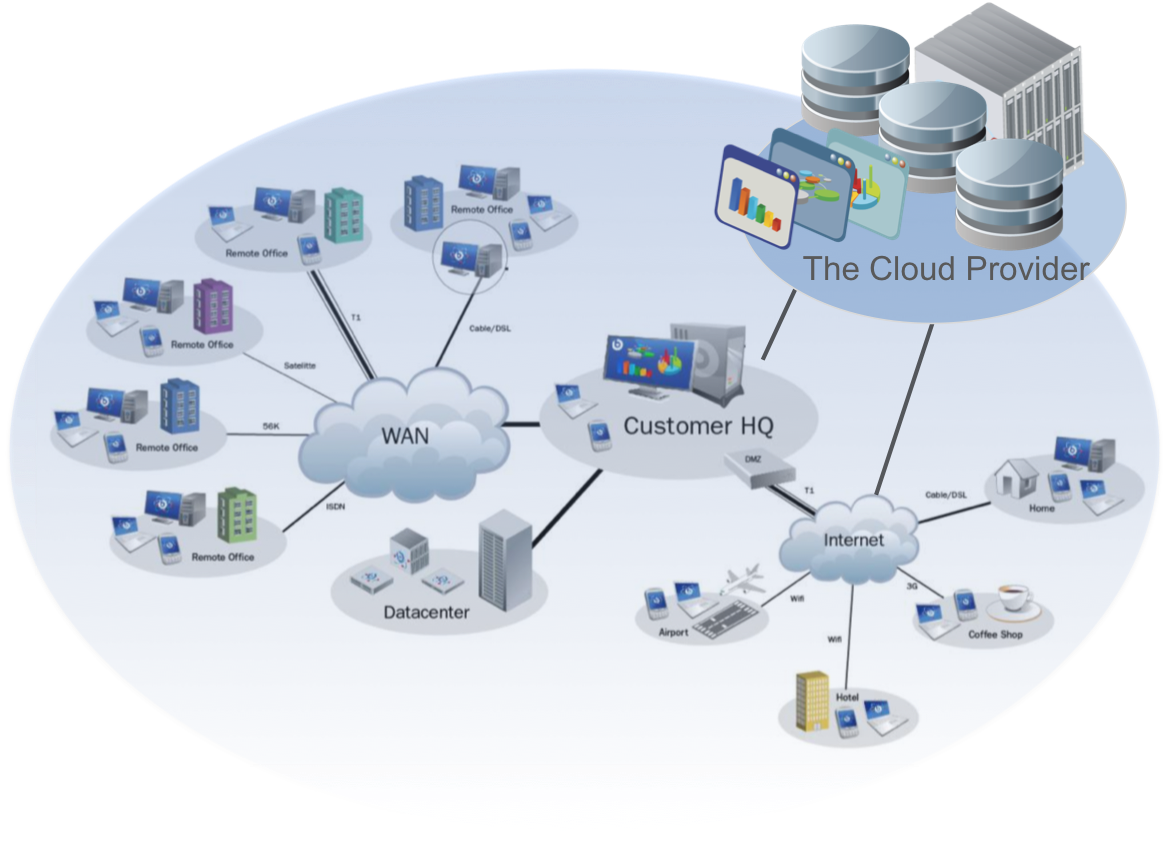
The idea is basically the rehash of a Distributed System. Imagine a simple client-server relationship in a company. The servers store the data and the programs. The client, in this case the employees, access the server to get whatever data they need, or operate whatever software they need. If the server room of a cloud computing company is the 'Back End', where all the installations, updates and log processing happens, the 'Front End' would be the clients computer, which runs on the what-you-need-is-what-you-see basis. The user/client does not need to be concerned about the server issues, he only asks to work on a particular program to get the job done, and that's what the server provides. So a cloud is the collection of virtual computers that contain certain resources on giant server farms that the user can access.
Once you get the idea of how the structure of a simple server-client database works, all you need to add to it is the Internet.

How the cloud works can be understood from this point of view -

The Back End
The cloud is a collection of all data (software, apps and their storage), which any user subscribed to it can access, at any time using the Internet. Here, the back end would be multiple servers that work together, each one holding one software or one app (one is efficient but sometimes not economically feasible). Which means, each software or app belongs to a dedicated server. All these dedicated servers are controlled and managed by the administrator server. Each server will not only contain the latest version of a software, but you'll also get the option of data storage onto the server. Data storage will most likely be encrypted and password protected, along with other securities. The size of the back end's storage room depends on the number of clients and whether the company is going to provide backup for the client data.

The Front End
This is the customer/client end of the cloud. The user approaches the cloud service provider to subscribe to their packages. Anytime he/she needs to access a file or run a software or app, that request is accepted by the cloud. It connects to the relevant server and in almost no time, you get the app right on your screen.

How the Cloud is Used?
There are a lot of service providers that you can subscribe to, like the Amazon Web Services or Verizon/Terremark or IBM (for the PC). Once you do, whenever you want to access a particular software, you just login through the Internet and select the software. The beauty of this is, you don't need to download or install anything! What's happening is, you're just using the software on the cloud, not on your computer. This eliminates the downloading cost for the software. You just need to pay for the service. Updates are no longer your concern. This is important because multiple users working (in a non-cloud situation) on the same project but having different versions of a software can conflict with the process. The same goes for individuals using the various operating systems (PC, Linux or Mac). Regardless of what OS you're using, when you're on the cloud, it's the cloud's OS that you use, making he compatibility issue non-existent

All in all, you get to use software suites like Microsoft Office, or even games, at the touch of a button, the same way you access Facebook. So if someone gets to start an online cloud based server for a multiplayer game, all you need to do is subscribe and start playing. You may or may not be required to have the game installed on your computer. All you'll need is a computer and Internet access. If someone starts a tutorship or puts up entire learning modules on the Cloud system, you can access it to use their learning software, access their videos, talk to the professors on an chat system they installed. This will differ from regular e-learning because you don't need to install anything, you can probably have a much more flexible learning routine.

It can also be said to be a combination of one way grid computing (data transfer between client and server only) and utility computation. A company makes a cloud that a client pays to use. This is the basic principle of such servers - clouds gather, what you use.

What is Dropbox and How Does it Work?

Retrieve Deleted Files?
Dropbox will keep deleted files for 30 days before permanently deleting it. So, you will always have a month's time to restore those important, yet deleted files.

Dropbox is a one-stop destination for all your file needs. Though the Internet has been around for a while now, it was only after the advent of Cloud Storage that we could truly use the Internet to store data virtually. Drew Houston and Arash Ferdowsi are the brains behind the concept of Dropbox. The company is based in San Francisco and is funded by Sequoia Capital, Accel Partners, and Amidzad.

You can create an account on their website for free to get limited storage space (2 GB), or opt for a paid subscription if you wish to get more storage space (up to 100 GB). Let us get acquainted with this amazing way of storage and see how it works.

What is Dropbox?

Dropbox is an online storage facility that uses Cloud Storage to create backup facilities for all your files. You can share photos, docs, videos, and files using your Dropbox account. These files will be available on the computers, iPhones, iPads, and Android devices that have the Dropbox application, and are available on the Dropbox website as well. The concept of Dropbox is such that you can share files with others. The next time you create an important document, make sure you share it using Dropbox, so that you have a backup copy of the same. 256-bit AES encryption is used to secure the stored files. You can make changes to these files even after they are stored in Dropbox.

Technology Behind Dropbox
The software program (server and client) of Dropbox is written in Python. Python is a high-level programming language that allows users to write codes in a few lines as compared to other programming languages. On Windows, the py2exe utility is used for the source and application coding. On Linux, the bbfreeze utility is used for static linking the Python interpreter and the OpenSSL library.

Storing a File

When you store any file on Dropbox, here's what happens at the backend:

❶ You will drag-drop the file that you wish to store to the designated folder in your account, or copy-paste to the respective folder.

❷ Once the file is saved, it is synced to their online servers.

❸ These files are then encrypted and stored in Amazon's Simple Storage Service (S3) in different data centers across the United States. Amazon's S3 is a web service interface that provides storage for Internet users.

The network connection is peer-to-peer, but in case you want to share files with your friend, it is not mandatory that both of you be online. The Dropbox server will store the files with the relevant changes. These edited files will be automatically updated into individual folders.

Server Side Process

When you wish to upload a file which is 4 MB, here is what happens at the server side.

❶ Dropbox will check the size of the file. If it is <4 but="" continue="" if="" is="" it="" mb="" process="" the="" will="" with="">4 MB, the file needs to be broken into smaller units of 4MB. The reason being—Dropbox stores files in blocks of 4 MB.

❷ If the file fits into one block, the client side hashes the file. The hash function is an algorithm that will map data of variable length into a fixed length, which means the variable length file will be converted into a 256-byte string (in this case) and sent to the server.

❸ Once on the server, the cache will check if a file with the same hash function already exists. If the file exists, the cache will simply return its copy, but if the hash function doesn't exist, the file will be uploaded to a new location.

LAN Sync

In case of files accessed and shared on a local area network (LAN), the LAN sync technology is used. Here is how the sharing is performed:

❶ You have created a file and it is saved on your computer's Dropbox.

❷ When you make any change to the file, the syncing process is initiated.

❸ All the computers and shared folders that are linked to your computer will download this version of the file.

❹ However, with the LAN sync function enabled, the Dropbox will first check the LAN for any new file instead of checking for it on the central servers. Thus, the processing time reduces.

Getting Started

If you are new to the world of Dropbox, here's the process to get started with this 'feature' (as quoted by Steve Jobs).

To start using Dropbox, you will first need to download it on each device that you need to keep in sync with your account.

During the installation process, you will be prompted to enter a username and password. You have to create just one account, irrespective of the number of devices you want to keep in sync.

Once the installation process is completed, a Dropbox folder will be created on your hard drive.

You can drag-drop files in this folder, and they will automatically sync with other devices.

These files are now available on the website as well as on the shared devices' Dropbox folders.

The next time you think of buying a USB stick or hard drive to store your files, try Dropbox. You will be surprised to see how easy it is to share and access your files from mobile devices.

Tuesday, March 11, 2014

How to increase battery life of smart phones


There are too many smart phones and it’s always nice to have a smart phone with all the latest features and best hardware configuration. But with all these best of best features you also get “Low Battery” alerts which is something most of us don’t want to see in the middle of the day. These devices can be tweaked to get the most out of its lithium-ion batteries.
Here are some of the tips that you might consider for a better battery life of Smart Phones.
  • Bring down the brightness of your screen to 0% or just above that instead of 100 %.
  • Lower volume (still audible enough) when listening to music.
  • Switch off Radio when not in use.
  • Try using inbuilt features instead of third party apps which does the same job as inbuilt features.
  • Uninstall all unused apps.
  • Turn off WiFi, GPS, Bluetooth, Smart Stay – Eye tracking and Sync when not in use.
  • Turn off Vibration and keypad tone.
  • Avoid Bluetooth headset.
  • Push notifications as soon as they arrive in your server’s mailbox can be power hogs, turn off push and increase the interval between when the phone checks for new messages. Manual checking is better.
  • Avoid Flash animation, as they consume lot of battery power.
  • Playing games with high graphics can bring down the battery life drastically.
  • The CDMA mobile standard uses more power than a GSM network. If battery life is critical, you might want to consider GSM as long as its coverage meets your needs.
  • Use less number of widgets on your Android device as it consumes more battery (and data).
  • Turn off mobile data network and navigation when not needed.
  • Use task manager to kill unused apps.
 Even after doing all these, if your battery lasts only an hour after you’ve charged it, you know its time is up. :)