Showing posts with label how to's. Show all posts

Tuesday, April 1, 2014

How to Connect Your Laptop/PC/Computer to Your TV

This article will teach you how to connect your PC or computer to a TV or HDTV using wired and wireless connections. You have many options these days, so it really depends on your hardware and budget. The most common method currently is still by connecting a cable from your laptop to your TV, so I’ll go over those first.
However, if you have bought a laptop like the MacBook Pro recently, then there is a way to wirelessly stream whatever is on your screen to your TV using Apple AirPlay. Unfortunately, there is nothing like that for Windows computers just yet, even with the release of Windows 8. This is one area where it’s advantageous to buy a Mac over  a PC because of the wirelessly streaming feature.
Connect Laptop to TV via Cable

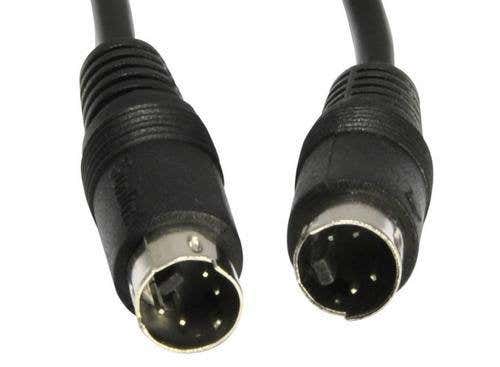
S-Video

s video cable
Five years ago, this used to be the most common method for connecting a laptop to a TV because S-Video cables are cheap and just about every laptop and TV back then had a S-Video port. Nowadays, it’s rare to find a laptop with an s-video port, though lots of moderns TVs still include the port. Remember, there are two types of S-Video cables: 4-pin and 7-pin. Most laptops and PC’s are equipped with a 7-pin port, so if your TV only has a 4-pin S-Video port, then this method will not work or you’ll have to get an adapter.
S-Video picture quality is moderate and does not support high-definition video. Also, S-Video ports do not support audio, so you’ll have to buy a separate cable for that purpose. DVI and HDMI are best suited for HD signals.

VGA

vga cable
VGA, like S-Video, was another common port found on all laptops and TVs/computer screens back in the day. Again, you’ll still find the port on HDTVs and monitors, but not on laptops. Most desktops still support VGA and have VGA ports on the back. In terms of picture quality, VGA is bette than S-Video. Also, as with the S-Video cable, VGA cables are very cheap. VGA cables do not support audio, just like S-Video cables.
DVI

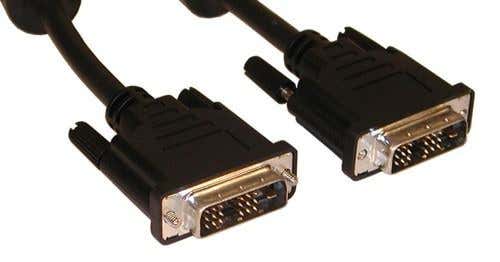
dvi cable
DVI stands for Digital Visual Interface with “digital” being the key word there. The digital signal will give a higher quality picture than either S-Video or VGA. Of course, your computer will need to have a DVI connection and your TV will need to be an HDTV. DVI cables used to be expensive, but now you can get them for $5 to $10 online. Also, DVI cables to do not support audio either, so you still need a separate cable for that.
DVI cables are also a bit complicated as you have DVI-I (Single Link), DVI-I (Dual Link), DVI-D (Single Link), DVI-D (Dual Link) and DVI-A. The reason why DVI became popular is because it supports analog connections also, namely VGA. You can buy a DVI to VGA adapter to convert between a DVI output and VGA input, etc.
HDMI

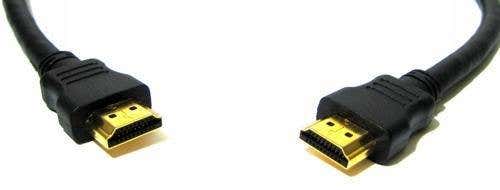
hdmi cable
HDMI (High-Definition Multimedia Interface) will give you the best quality picture on a HDTV. Even though HDMI is very popular, a lot of laptops still do not come with HDMI ports built-in. Luckily, HDMI is compatible with DVI, so you can get a HDMI to DVI cable to connect it to your HDTV. Unfortunately,  HDMI cables are pretty expensive these days. You can buy cheap ones, but you may not get the same quality picture as a more expensive cable.
There are also many versions and types (A thru E) of HDMI cables that support different features like audio, 3D over HDMI, Ethernet, and 4K resolution support. The best part about HDMI cables is that you get high-definition video and audio passed through the cable, which makes it very convenient when connection a laptop or PC to your HDTV.

DisplayPort

displayport cable
DisplayPort and Mini-DisplayPort are very similar to HDMI and DisplayPort is meant to complement HDMI, not replace it. The basic advantage to DisplayPort is that it can support up to 4 video and audio streams across one cable. That mean you could connect up to 4 monitors at 1920×1200 or 2 monitors at 2560×1600 pixels.
HDMI is still more popular, but you’ll find DisplayPort ports on Apple computers, the Microsoft Surface tablets, and even some Windows PCs. DisplayPort is also backwards compatible with VGA and DVI, which is nice.

Connect Laptop to TV Wirelessly

In addition to connecting your laptop to your TV using a cable, you can also wirelessly project your laptop display on your TV using new wireless technologies. I’ll mention a couple of the different technologies that currently exist and explain what hardware is needed. Unfortunately, the main reason wireless streaming of laptop and desktop displays to TVs has not become ubiquitous is because of the extra cost of the hardware needed.

Apple TV

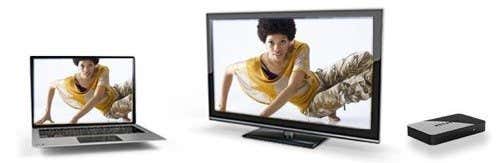
apple tvIf you have a MacBook Pro,  MacBook Pro, MacBook Air, Mac Mini or iMac that is from 2011 or later, you can wireless stream your Apple laptop or desktop display to your TV using an Apple TV in full HD. The Apple TV is a separate hardware device that cost $99. Since only a few of the most recent Mac computers support AirPlay Mirroring, it’s not very popular.
Intel Wireless Display

intel wireless display
The AirPlay feature that is supported on Macs is one feature that has been missing on Windows computers for a long time. Luckily, things have changed and Intel has come out with a technology called Intel Wireless Display (WiDi), which lets you stream your laptop screen to an HDTV wirelessly.
Of course, the main downside with WiDi as with AirPlay technology is that it’s relatively new and therefore you can only use it if you have a PC that supports WiDi. If you’re planning on buying a new PC soon, you should look into whether the feature is supported or not as it can make streaming your laptop or PC screen to your HDTV relatively easy.
There are only a couple of HDTVs that support WiDi right now, but you can buy an adapter for any HDTV that will let you stream content to that TV from a WiDi enabled device.

Wireless Kits

If you don’t have any of those technologies built into your computer or want something that’s not proprietary, then you can buy wireless computer to HDTV kits. There are quite a few of these out there and I’ll link to some of the popular ones I’ve heard about myself.
Imation Link Wireless HD Audio/Video Extender - Supports up to 720p for video and can transmit audio also. Requires DisplayLink software, which is available for Mac and PC.
Veebeam HD – This kit supports 1080p wireless HD video and digital audio.
Netgear Push2TV – This works with the new Intel Wireless Display technology I mentioned above and needs a PC that supports WiDi. It doesn’t support the Mac OS at all as of right now.
So those are your options for connecting your laptop or PC to your TV via wired connection or wirelessly. The fastest and most reliable way is still via cable, but you if your computer supports the latest AirPlay or WiDi technology, you’ll be good to go. The wireless kits use sub-par technology and won’t give you as good results as the other technologies mentioned. Enjoy!

How to Format USB Drive and Memory Stick with NTFS

If you have ever tried to format a USB thumb drive or memory stick, you may have noticed that the only options you get are FAT and FAT32 file systems. This is the default behavior in Windows XP. However, with some slight tweaking of settings, you can actually format your removable storage devices in NTFS format, including external hard drives, etc.
Of course, there is a reason why Windows defaults the formatting of removable storage to FAT and FAT32. There are actually a few advantages and disadvantages to formatting a USB drive in NTFS format, so we’ll go through those before actually talking about how to do it.
The advantages of enabling NTFS of removable storage devices are mostly security related. For example, an NTFS file system lets you to add allow and deny permissions on individual files and folders for specific Windows users, something you cannot do in the FAT file system. But that’s not all in terms of security. You can also encrypt files using Windows XP’s built-in encryption.
Other benefits include the ability to compress files and therefore save space on your USB drive. You can also set disk quotas and even create partitions! Formatting USB drives in NTFS has several advantages that would be good if you need to use some of these advanced features, i.e. for your IT department or if you’re just paranoid!
However, there are also a few drawbacks to using NFTS on a USB drive. Firstly, there is a lot more writing to the drive that is required when using NTFS and therefore your access to the device will be slower. Will it make a major difference that would prevent people from using it? Probably not, but it’s something to consider. Also, versions of Windows older than 2000 cannot read NTFS file systems, nor can most Linux systems.
The other major downside is that if you encrypt your files on the USB drive, you will not be able to open them anywhere else. Actually, this can be considered a downside or an upside depending on what you want to do. If you want to secure your USB stick so that only your user account on your one computer can open the files, then encrypting is perfect. If not, then do not encrypt the files.

How to format USB drive with NTFS

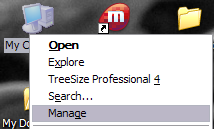
First, connect your USB device to your computer. Then right-click on My Computer from the desktop and choose Manage.
manage my computer
Next click on Device Manager and then expand out Disk Drives. You should see your USB drive listed there as “Generic USB 2.0 USB Drive” or something similar.
usb disk drive
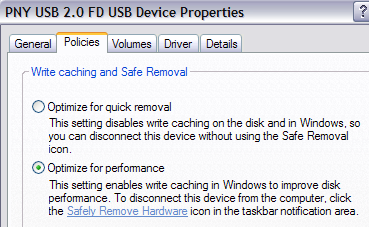
Now right-click on the USB drive under Disk Drives and choose Properties. Then go to the Policies tab.
optimize for performance
Now you will see two options, the “Optimize for quick removal” selected by default. Go ahead and change that by selecting the “Optimize for performance” option. This enables writing caching on the drive and therefore allows you to format it as NTFS! Sweet.
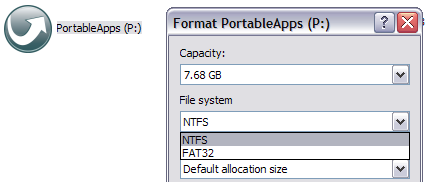
That’s it. Now click OK and then go to My Computer. Right click on the drive in My Computer and choose Format. In the File System drop down you will now see the option for NTFS!
file system ntfs
You can now secure your USB flash drive or external USB hard drive in any way you like! Enjoy!

How to Format External Hard Drive to FAT32 in Windows

Trying to format a large external USB or Firewire hard drive to the FAT32 file system? Can’t do it? Only see an option for formatting the drive using the NTFS file format? Well if you answered yes any of those questions, then you’re at the right place.
I was recently trying to format my 1 TB MyBook external hard drive in Windows XP to FAT32 instead of the overly forced-upon NTFS format. Why? Well because I needed to connect it to a NAS device and the NTFS permissions were causing the NAS not to be able to access the drive. Simple solution is to use FAT32, no security, no problems. Though it’s sometimes useful to format a USB drive in NTFS format.
Also, formatting a drive in FAT or FAT32 will allow it to be read by other operating systems, such as Mac, Linux, and older versions of Windows such as Windows 98.
Unfortunately, Windows XP and Windows Server 2003 will only format a removable drive in FAT32 if it’s less than 32GB! Hmmm…that pretty much cuts out ALL modern external hard drives!
However, Windows can format a drive that is larger than 32GB in FAT32, but you have to use the DOS command prompt. However, if you have a drive that is 1TB or larger, you may still get an error saying “The volume is too big for FAT32”.
In that case, you can use some 3rd party programs that will allow you to format an external hard drive with the larger size. Let’s go through the different methods. In case you are having problems getting your external hard drive to show up in Windows, read my article on how to change the drive letter for an external drive in Windows.

Format in FAT32 using Drive-Specific Tools

Before we get into using the command prompt and other third-party programs, it’s worth mentioning that some of the hard drive manufacturers have created their own tools for converting a drive which is larger than 32 GB to FAT32. Here is a list:
Seagate DiscWizard 
Western Digital FAT32 Formatting Tool

Format External Hard Drive in FAT32 using DOS

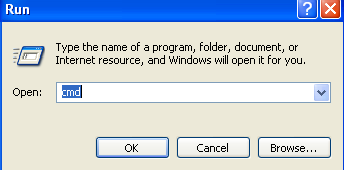
Open a command window by going to Start, then Run and typing in CMD.
command prompt
Now type in the following command at the prompt:
format /FS:FAT32 X:
Replace the letter X with the letter of your external hard drive in Windows. Windows will go ahead and begin formatting the drive in FAT32!
format external hard drive fat32
There seems to also be an issue when using the command line besides the size limit problem. Namely, it can take forever to format the hard drive for some users. Not sure why, but I’ve seen it enough times and it can be very frustrating to wait 5 hours and then have the whole format fail. If the format is taking longer than an hour, just cancel it and try one of the methods below first.

Format in FAT32 using Verbatim SmartDisk FAT32 Utility

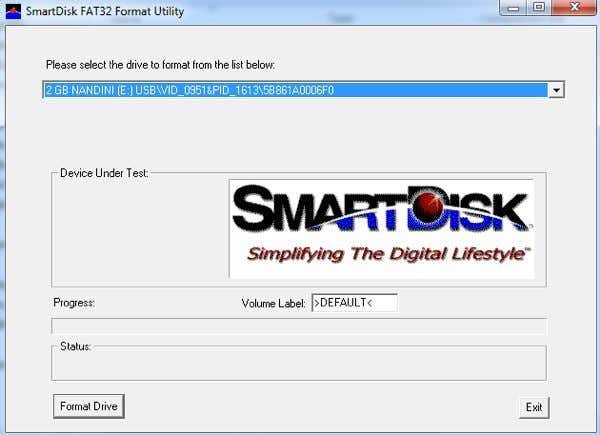
There is a free utility called Verbatim FAT32 Tool which will allow you to convert your hard drive to FAT32 in seconds. I use to recommend a program called SwissKnife, which I mention below, but it’s no longer free and no one really needs to spend $10 to convert a hard drive from NTFS to FAT32. There are lots of other free tools and this Verbatim one is one of the better ones.
Just download it, unzip it and run the tool. It’s a standalone EXE file, so you don’t even have to install it on your system. Choose the drive you want to format, give it a Volume name and click Format Drive!
verbatim smartdisk
It’s a painfully simple program to use and it works really well. If you don’t even want to bother with the command prompt, just download this free tool and use it.

Format in FAT32 using FAT32Format

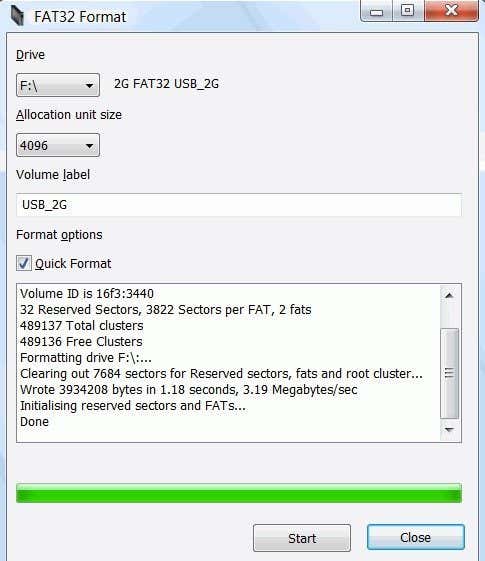
FAT32Format is another free tool you can use to get the job done. Choose the drive, the allocation unit size, give the volume a label, choose whether you want to do a quick format or not and then click Start.
fat32format

I would suggest not checking Quick Format so that way the entire drive is completely overwritten and you’re starting from scratch. I’ve tried this program and it was able to convert my 1TB hard drive to FAT32 without any issues. It did take longer than Verbatim, but I didn’t choose Quick Format, which probably would have been faster.

Format in FAT32 using FAT32Formatter

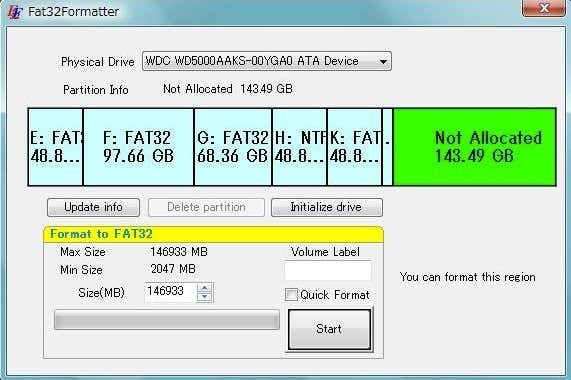
Another option is the FAT32Formatter program from Tokiwa. Using this program, you can see the different partitions on the hard disk and format just one partition to FAT32 instead of the whole drive. It’s probably best not to have a mix of NTFS and FAT32 partitions on one drive, but you can do it if you want or if you need to for some reason. This program will allow you to do that.
fat32formatter

Format in FAT32 using SwissKnife

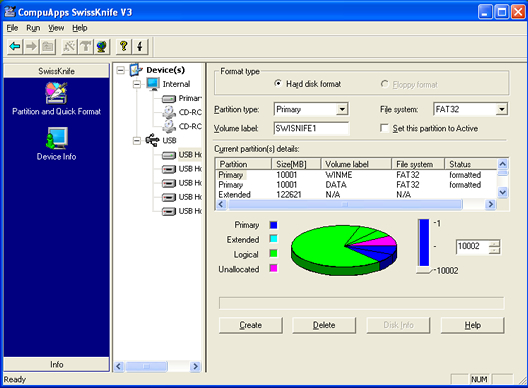
SwissKnife is a nifty little program that used to be free, but not anymore, which you can use to format many types of external drives such as USB, Firewire, PCMIA, SATA and SCSI. The link points to the CNET page, which still has the older free version you can download. You can also use it to create partitions on an external hard drive and it formats faster than Windows.
swissknife
With SwissKnife, you may run into an issue where after the conversion to FAT32, you are left with only a small percentage of the original disk size. For example, if you format a 1TB drive, you might perform the conversion and end up with only 500 MB of space. This can be fixed by first reformatting the drive in NTFS format by performing a quick format.
Once you format the entire drive using NTFS, make sure to view the available space in Explorer and that it matches the size of the hard drive. Once you do that, go ahead and use SwissKnife to perform the conversion to FAT32.
So next time you want to format a hard drive in FAT32 and Windows only gives you an option for NTFS, make sure to follow one of the methods mentioned above. Enjoy!
How To boot Windows 8 into the System Recovery Options

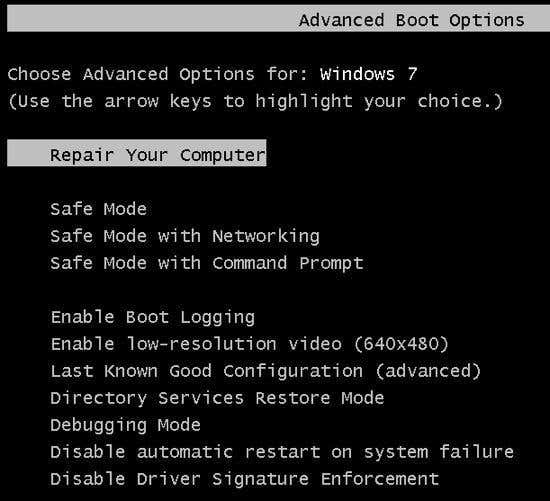
Windows 8 has drastically redesigned the boot menu to not only look more modern, but also to be a lot easier to use. I have to say they have done a good job. All older versions of Windows used the basic DOS-looking text interface to choose options like Safe Mode or Advanced Boot Options.
windows 7 boot options
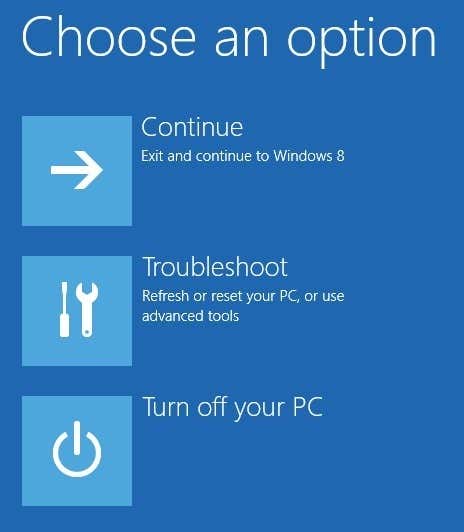
Most people didn’t even bother looking at anything below Safe Mode because it’s pretty technical for the average user. Now when you enter Windows 8 boot menu, you see a nice GUI interface that is Metro-styled. This is also called Windows RE (Recovery Environment) or the System Recovery Options.
windows 8 boot
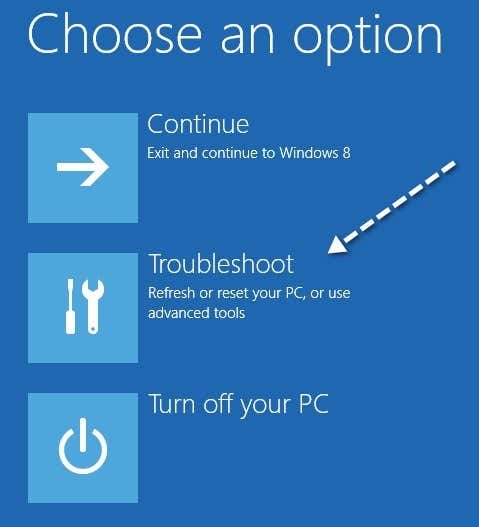
You have three options: load Windows normally (Continue), Troubleshoot Windows or turn off your PC. A lot fewer choices to start off with, making it easier for people to use the tool. I know a lot of people who have had problems with Windows 7, but could not figure out how to load startup repair or get into Safe Mode. In this article, I’ll walk you through the steps and different methods to get into the boot menu.

Method 1 – SHIFT + Restart

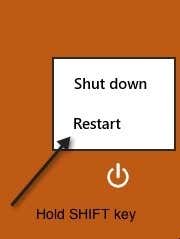
One way to start Windows 8 in Windows Recovery Environment is to simply press SHIFT and then click on Restart. What’s good about this method is that you can do it from within Windows or you can do it even if no one is logged onto the system.
shift restart
So if you need to troubleshoot a Windows 8 machine or boot from a secondary device and you can’t log into the system, then you can still restart in Windows RE by clicking on the power button icon at the bottom right of the login screen.

Method 2 – PC Settings

The second way to do it is to go to PC Settings in Windows 8. You can do that by opening the Charms bar and then clicking on Settings.
settings
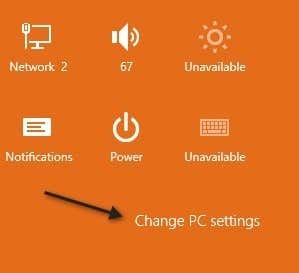
Then click on Change PC Settings at the bottom of the settings bar:
change pc settings
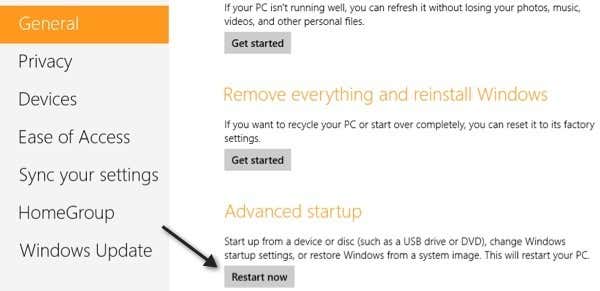
Finally, click on General and then click on Restart now under the Advanced startup section.
restart now

Method 3 – Automatic or Recovery Drive

Lastly, if Windows 8 detects any boot problem with the system, it will automatically load up Windows RE boot options. If your board supports the new UEFI firmware, this will happen automatically. If not, you would still need to press the F8 key, but you will not have a lot of time since Windows 8 loads so much faster.
Instead, the best way would be to use Methods 1 or 2. However, if you can’t boot into Windows 8 at all and the boot options don’t come up automatically, you’ll have to hope you created a Windows 8 USB Recovery Drive. A recovery drive in Windows 8 will basically let you create a bootable USB flash drive that will load the Windows RE environment in case it won’t load automatically and you can’t get into Windows.
I will cover how to create a recovery drive on a USB flash drive tomorrow, so come back soon to read that article! Enjoy!
How To Boot Windows 8 into Safe Mode

We all have gotten accustomed to pressing either F2 or F8 to get the advanced boot options since Windows 2000, probably even before that. In every version of Windows, you always could count on the slower boot process to actually press the key when the text message appeared.
press f8 for boot
Well, those days are gone! In Windows 8, the boot time has been dramatically decreased and the screenshot you see above appears for about 200 milliseconds and that’s it! So if you want to get into Safe Mode in Windows 8, you have to go a different route. Instead of the Advanced Boot Options of earlier versions of Windows, you now first have to go through the System Recovery Options of Windows 8. It’s pretty much the same thing, but just looks a lot nicer and you have to click a few more menu options to get there. Here’s how.

Startup Windows 8 in Safe Mode

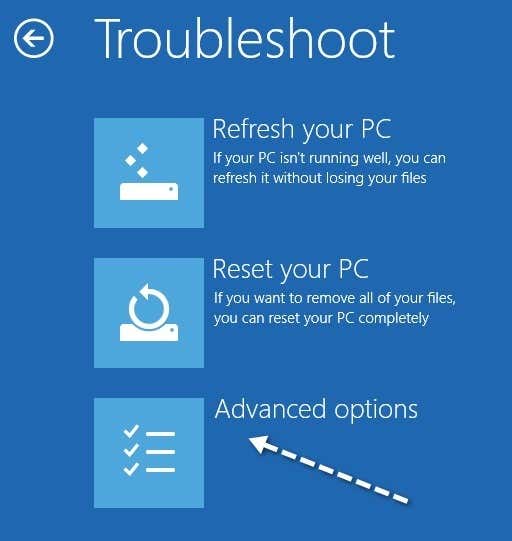
To get started, you first need to boot Windows 8 into the System Recovery Options. You can read my previous post on how to do that; there are basically three methods. Once you are there, you need to click on the Troubleshoot option.
troubleshoot windows 8
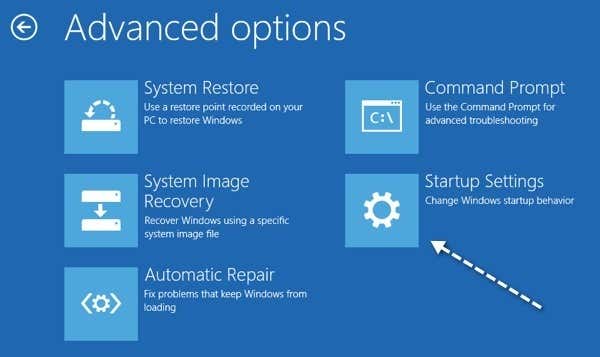
On the next screen, you need to click on Advanced Options.
advanced options
Then you need to click on Startup Settings on the last dialog.
startup settings
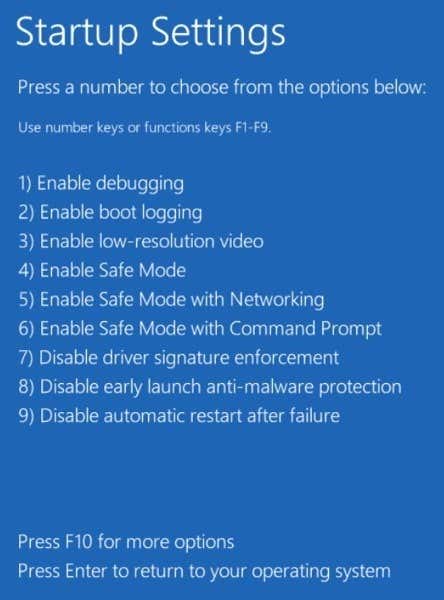
Finally, you have to click on the Restart button, which will give you options to start up in low-resolution mode, debugging mode, enable boot logging, and start in safe mode! Kind of a long process, but that’s the new way.
safe mode
Now you will finally get to the Startup Settings screen, where you can press 1 thru 10 or F1 thru F10 to pick your different settings. Press 4 or F4 to enable Safe Mode.
enable safe mode
That’s it! Windows 8 will now load in Safe Mode! You’ll have to type in your password to log in once it starts back up. I noticed that while in Safe Mode in Windows 8, I could not bring up the Charms bar. Not sure why, but I could not figure out how to restart the system. What I ended up doing was going to the Start Screen, then clicking on my name at the top and there was an option to signed out. Once I signed, there was an option to Shutdown or Restart when I clicked on the Power button at the bottom right. So if you’re stuck in Safe Mode and can’t get out, that’s how do to it.
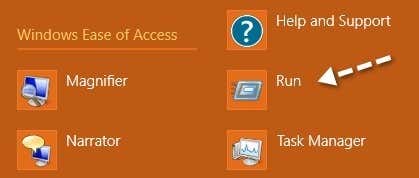
Also, it should be noted that you can use the MSCONFIG utility to startup in safe mode also. Go to the Start Screen, right-click, then choose All apps and then click on Run.
run command
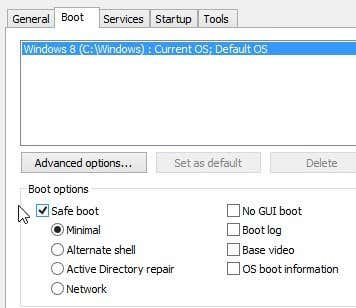
Next, type in msconfig in the run dialog and then click on the Boot tab:
boot tab
Check the box that says Safe boot and then choose an option. You can pick from:
Minimal – Normal Safe Mode
Alternate shell - Safe Mode with command prompt
Network – Safe Mode with networking
Don’t worry about Active Directory repair, that’s some IT-related option. You can also check the boxes for No GUI boot, Boot log, Base video and OS boot information. Note that when you boot into safe mode using msconfig, it will continuously boot until you go back into msconfig and uncheck the Safe boot option. Enjoy!
Ultimate Windows 8 WiFi Troubleshooting Guide

If you’re running Windows 8 or recently upgraded, you might have run into some frustrating WiFi issues. Windows 8 is inherently a different beast than previous versions of Windows and with it comes a new set of problems. I never encountered too many wireless problems in Windows 7, but have run into several with Windows 8.
In this article, we’ll go through a couple of the most common problems with WiFi connections in Windows 8 and how to troubleshoot them. Most of the problems occur with those computers that got upgraded from Windows XP or Windows 7 to Windows 8. Either the driver is out of date or the adapter gets disabled or something odd like that. Let’s get started.

Limited Connectivity Message

If you’re getting that annoying limited connectivity message in your task bar in Windows 8, it’s really hard to tell what the problem is. You basically just have to try a couple of things and hope one works. The cause could be anything from the network adapter to the wireless router to a bad network cable. I’m only going to mention a few of the major reasons here, but scroll down to the Other Troubleshooting Tips section if none of these fix your problem.

Method 1 – Troubleshooter

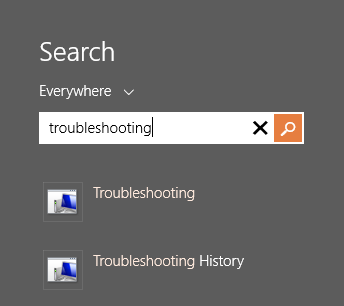
The first thing you can try is to run a couple of the network troubleshooters built into Windows 8. A lot of the time, it can solve your wireless or Internet problem for you. To open the troubleshooter, open the search charm and type in troubleshooting. Then click on Troubleshooting, the first option.
Troubleshooting search
Now you want to click on Network and Internet.
Network and internet
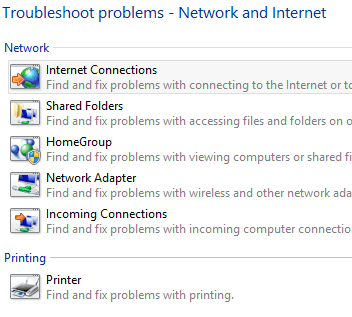
Finally, you will see the different troubleshooters available for fixing wireless and Internet problems. The ones you will want to run are Internet Connections and Network Adapter.
Network troubleshooter

Method 2 – Reset TCP/IP in Windows 8

You might also get a message like this when running the troubleshooter:
WiFi does not have a valid ip configuration
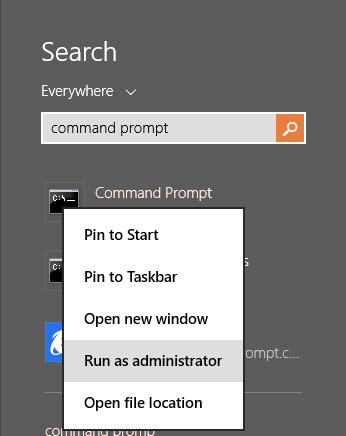
In this case, you can reset the TCP/IP stack and Winsock and see if that works. To do this, again open the search charm and type in command prompt. On the first listing, right-click and choose Run as Administrator.
Command promt
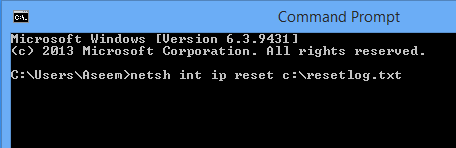
At the command prompt, type in the following two commands, one at a time and make sure to press Enter after each one:
netsh winsock reset catalog
netsh int ip reset c:\resetlog.txt
Netsh reset
Hopefully, your wireless connection is working at this point. If not, skip down to the bottom section which has more troubleshooting tips.

WiFi is Disabled or Greyed Out

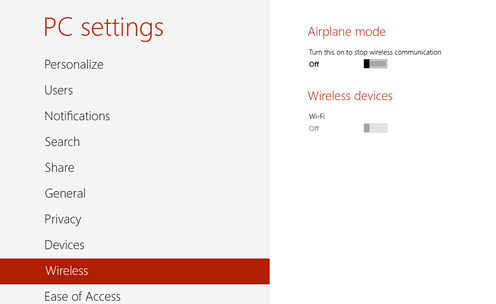
in one odd case, I had a Surface tablet where the wireless was disabled and I could not even enable it. For some odd reason, the On/Off toggle switch for Wireless Devices was greyed out like below:
Toggle switch
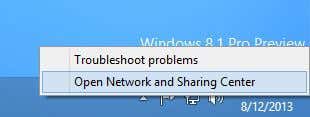
The first thing you can do is try to diagnose the connection. To do this, open Network and Sharing Center. You can simply right-click on the network icon in the task bar and choose it or you can open the search charm and type it in there.
Network sharing center
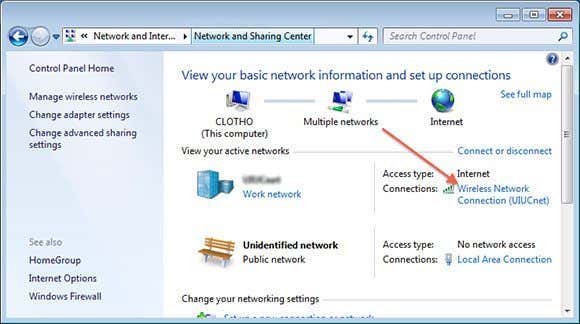
Now find the wireless connection at the top and click on the blue link:
Wireless connection
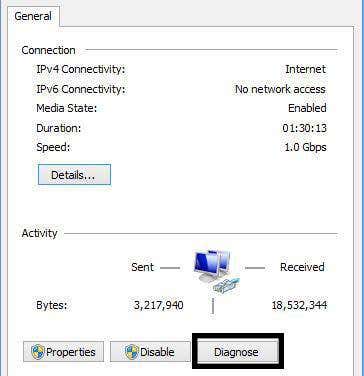
A new dialog will pop up and here you’ll see there is a Diagnose button. Go ahead and click on that and let Windows try to fix it for you.
Diagnose connection
The next thing you can try is to restart in Safe Mode, Network Enabled and try to turn on the Wireless there. For some reason on certain computers, the option is not greyed out in safe mode, so you might be able to enable it there and then restart in normally. Read my previous post on how to boot Windows 8 into safe mode.
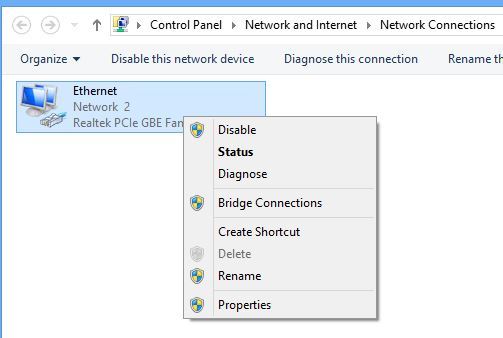
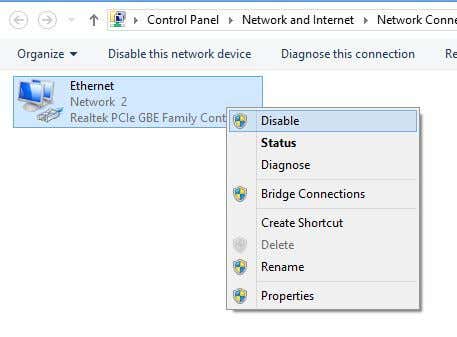
The other thing you can try is to disable and then re-enable the wireless network adapter. Again, open Network and Sharing Center and then click on the Change adapter settings link at the left. You can see it in the second screenshot above this paragraph.
Disable network connection
Right-click on the wireless network adapter (not the Ethernet one like shown above) and then click on Disable. Once it’s disabled, go ahead and right-click again and then choose Enable. Now try to go to Wireless in PC Settings again and see if you can enable WiFi.
If this doesn’t work, again drop down to the last section which has more WiFi troubleshooting tips.

WiFi Not Connecting from Sleep or Hibernation

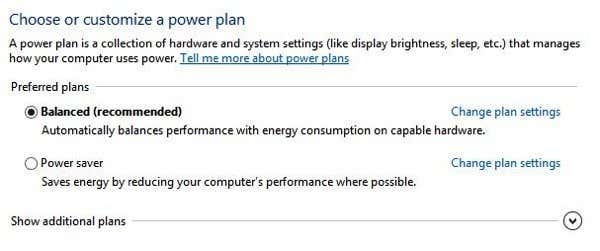
If your Windows 8 machine is disconnecting from the wireless network whenever you return from sleep or hibernation or any other standby state, then your problem is probably with a power-saving option set on the network card. To fix this, you need to open the search charm and type in Power Options.
Here, click on the selected plan and then click on Change plan settings.
Change plan settings
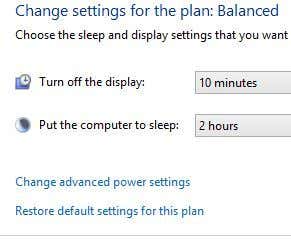
Then click on the Change advanced power settings link.
Change advanced settings
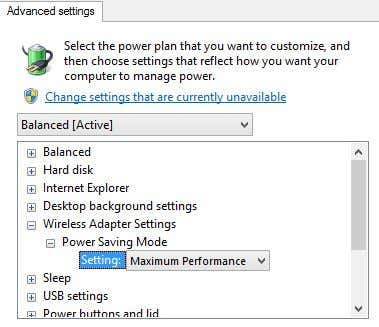
Now scroll down to Wireless Adapter Settings and make sure the Power Saving Mode is set to Maximum Performance.
Maximum performance

Other Troubleshooting Tips

Check Network Card at Compatibility Center

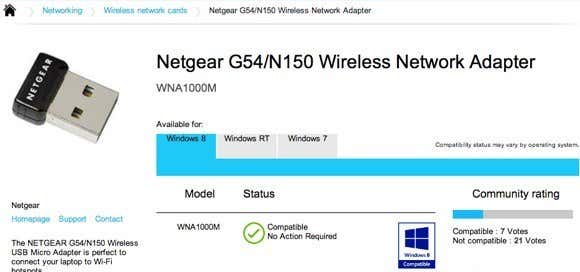
You can check to see if your wireless network card is compatible with Windows 8 by visiting the Capability Center. Go ahead and type in the name of your wireless card and you should get a little report like this:
Compatibility center
It’ll have a little blue logo if it is compatible or not. You can also check Windows RT in addition to just Windows 8. So this is a nice site to check out if you are having issues with your WiFi network, especially if it’s not showing up at all in Windows 8 or it’s got a yellow exclamation sign in Device Manager.

Check Network Adapter Settings

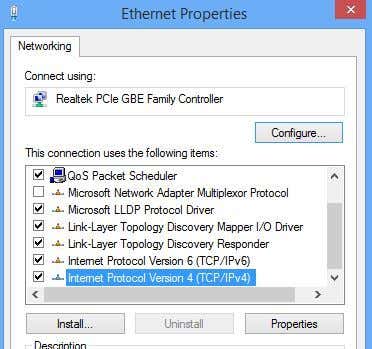
Open Network and Sharing Center, click on Change adapter settings and then right-click on then wireless network adapter and choose Properties.
Adapter properties
Now scroll down in the list box until you see Internet Protocol Version 4 (TCP/IPv4) and then click on the Properties button.
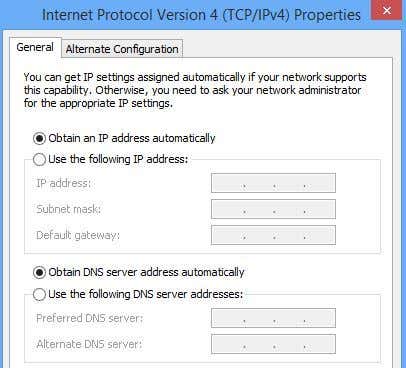
Ip4 properties
Finally, make sure the Obtain an IP address automatically and Obtain DNS server address automatically radio buttons are selected.
Obtain automatically

Check Wireless Switch

On most laptops, there is a wireless switch or button that can be toggled from on to off. Make sure you have that button set to On or press FN + F8 to enable the wireless card. The switch can be anywhere (sides, front, back, etc), but there is usually an indicator light so you can tell when it’s on.

Uninstall in Device Manager

Another quick tip is to go to Device Manager, right-click on your wireless network card and choose Uninstall. Then reboot your computer and it was automatically be detected and reinstalled. If it’s still not working after trying this, then read the next tip, which is updating the driver.

Update BIOS & Drivers

As always, it’s a good idea to download and install the latest drivers for your network card. This is especially important if you’re running Windows 8. As for the BIOS, I’ve always been the one to suggest not updating the BIOS unless it’s really needed. However, if you upgraded a computer from Windows XP or Windows 7 to Windows 8 and you tried everything above and updated the driver, then updating the BIOS might be worth it. 99% of the time updating the BIOS is just fine, but there are occasions when it fails and then leaves you with a computer you can’t boot. Only try this as a last resort and make a backup of your computer first just in case.

Reset the Router

If you’re getting the Limited Connectivity message, then you can try resetting the router. You can either restart it by just unplugging it, waiting about a minute and then plugging it back in. If that doesn’t work and you’ve tried all the stuff above, go ahead and reset your router. This will reset it to the default settings and will wipe out any security or configuration you had done earlier, so be careful and be ready to do that all again. It’s a last resort measure, but it could fix your problem.
Read my previous post on how to reset your router.

Remove Anti-Virus or Internet Security Suites

If you have something like AVG Internet Security or Avast or similar software installed on your PC or tablet, then go ahead and uninstall that program and see if your Internet connection starts to work. Many times Internet Security software has been the culprit and you could be pulling your hair out trying to figure out what’s causing the issue, so it’s worth trying.
So that’s a lot of stuff to try and practically every sane thing you can try. If none of this worked, then you could possibly have a hardware problem with your wireless card. If you have questions, feel free to post a comment. Enjoy!
Windows 8.1 Easy Guide To Troubleshooting Problems

Today’s article is a quick tip on how to troubleshoot problems in Windows 8.1, which you will most definitely run into using Microsoft’s shiny new OS. However, most problems don’t require booting into safe mode or following a 10 step guide to fixing WiFi problems.
Microsoft has also gotten smarter and included a lot of tools and help guides in the OS itself to diagnose and fix problems. I’ve found that teaching my clients how to use these built-in tools saves me a lot of time because they are able to fix problems in Windows 8.1 themselves. In this article, I’m going to talk about the built-in Windows 8.1 troubleshooters that can help you fix common problems.

Windows 8.1 Troubleshooters

Before I show you some of the troubleshooters, let’s see how to get to them in Windows 8.1. First, open the Charms bar by pressing Windows key + C or moving your mouse to the upper or lower right of your screen. Click on Search and then type in troubleshooting in the search box.
charms search troubleshooting
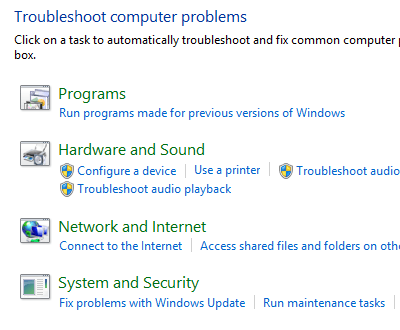
Click on the first result, Troubleshooting, and the main window will pop up where you can start troubleshooting computer programs. The main interface is broken down into categories like Programs, Hardware and Sound, Network and Internet and System and Security.
troubleshooting control panel
You can either choose from the list that is shown or you can click the View all link at the top left. I tend to click on that just so I can see all the options.
troubleshooting windows 8
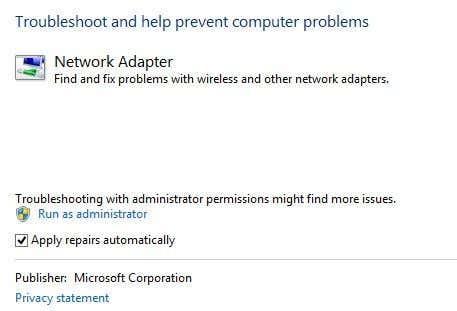
As you can see, there are quite a few troubleshooters. You can fix problems with a homegroup, troubleshoot Internet connection issues, check the configuration of your network adapters, get help with printing problems, fix sound issues, fix Windows Updates problems and lots more. If you click on one of the troubleshooters, you’ll get a pop up dialog like below:
troubleshoot network adapter
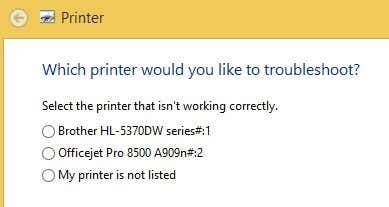
All of them will have a little Advanced button at the bottom, which you want to click on to see more options. It’s a good idea to keep the Apply repairs automatically checked and to click the Run as administrator link. Running the troubleshooter as an Administrator will allow windows to find more possible issues. When you click Next, the troubleshooter will start trying to detect any issues. For example, when I ran the Printer troubleshooter, it checked the spool service for errors and gave me a list of printers to see which one I was having trouble with.
troubleshoot printer
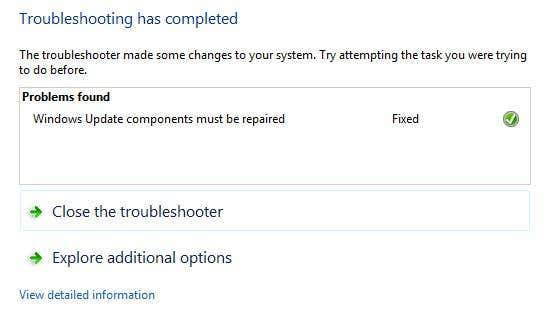
Before Windows 7, these troubleshooters were pretty useless and didn’t do much of anything. However, starting with Windows 7 and definitely more so in Windows 8, they can actually fix a wide range of issues without any user input. If there is an issue detected, the troubleshooter will attempt to repair the problem by itself. Most of the time this works, unless it’s a serious problem. On one Windows 8.1 computer, I had some Windows Update issues that were fixed by the troubleshooter:
troubleshooting completed
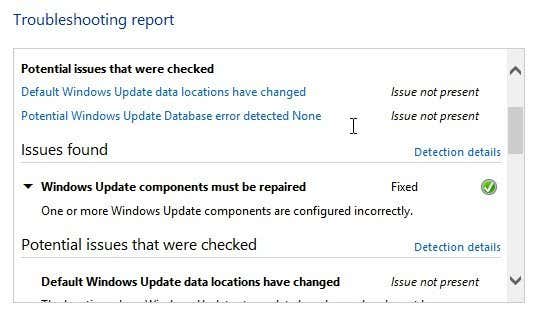
You can click on View detailed information to see exactly what issue was detected and fixed. In my case, it looked like one of the components for Windows Update was configured incorrectly.
error detailed informationThat’s about it! Using the troubleshooters built into Windows 8.1 is always a good first step. If the troubleshooter doesn’t work, it’s time to start Googling around for a solution, but hopefully you won’t have too. Enjoy!