This article will teach you how to connect your PC or computer to a TV or HDTV using
wired and wireless connections. You have many options these days, so it
really depends on your hardware and budget. The most common method
currently is still by connecting a cable from your laptop to your TV, so
I’ll go over those first.
However, if you have bought a laptop like the MacBook Pro recently, then there is a way to wirelessly stream whatever is on your screen to your TV using Apple AirPlay. Unfortunately, there is nothing like that for Windows computers just yet, even with the release of Windows 8. This is one area where it’s advantageous to buy a Mac over a PC because of the wirelessly streaming feature.
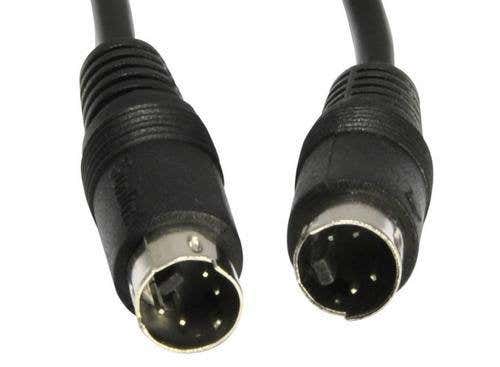
Five years ago, this used to be the most common method for connecting a laptop to a TV because S-Video cables are cheap and just about every laptop and TV back then had a S-Video port. Nowadays, it’s rare to find a laptop with an s-video port, though lots of moderns TVs still include the port. Remember, there are two types of S-Video cables: 4-pin and 7-pin. Most laptops and PC’s are equipped with a 7-pin port, so if your TV only has a 4-pin S-Video port, then this method will not work or you’ll have to get an adapter.
S-Video picture quality is moderate and does not support high-definition video. Also, S-Video ports do not support audio, so you’ll have to buy a separate cable for that purpose. DVI and HDMI are best suited for HD signals.

VGA, like S-Video, was another common port found on all laptops and TVs/computer screens back in the day. Again, you’ll still find the port on HDTVs and monitors, but not on laptops. Most desktops still support VGA and have VGA ports on the back. In terms of picture quality, VGA is bette than S-Video. Also, as with the S-Video cable, VGA cables are very cheap. VGA cables do not support audio, just like S-Video cables.
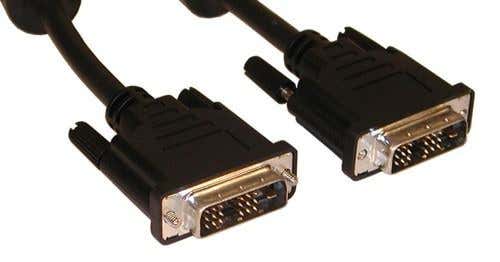
DVI stands for Digital Visual Interface with “digital” being the key word there. The digital signal will give a higher quality picture than either S-Video or VGA. Of course, your computer will need to have a DVI connection and your TV will need to be an HDTV. DVI cables used to be expensive, but now you can get them for $5 to $10 online. Also, DVI cables to do not support audio either, so you still need a separate cable for that.
DVI cables are also a bit complicated as you have DVI-I (Single Link), DVI-I (Dual Link), DVI-D (Single Link), DVI-D (Dual Link) and DVI-A. The reason why DVI became popular is because it supports analog connections also, namely VGA. You can buy a DVI to VGA adapter to convert between a DVI output and VGA input, etc.
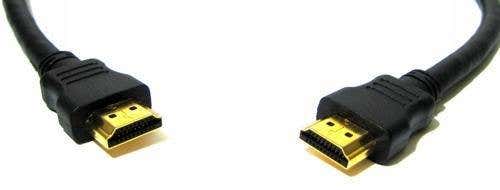
HDMI (High-Definition Multimedia Interface) will give you the best quality picture on a HDTV. Even though HDMI is very popular, a lot of laptops still do not come with HDMI ports built-in. Luckily, HDMI is compatible with DVI, so you can get a HDMI to DVI cable to connect it to your HDTV. Unfortunately, HDMI cables are pretty expensive these days. You can buy cheap ones, but you may not get the same quality picture as a more expensive cable.
There are also many versions and types (A thru E) of HDMI cables that support different features like audio, 3D over HDMI, Ethernet, and 4K resolution support. The best part about HDMI cables is that you get high-definition video and audio passed through the cable, which makes it very convenient when connection a laptop or PC to your HDTV.

DisplayPort and Mini-DisplayPort are very similar to HDMI and DisplayPort is meant to complement HDMI, not replace it. The basic advantage to DisplayPort is that it can support up to 4 video and audio streams across one cable. That mean you could connect up to 4 monitors at 1920×1200 or 2 monitors at 2560×1600 pixels.
HDMI is still more popular, but you’ll find DisplayPort ports on Apple computers, the Microsoft Surface tablets, and even some Windows PCs. DisplayPort is also backwards compatible with VGA and DVI, which is nice.
 If
you have a MacBook Pro, MacBook Pro, MacBook Air, Mac Mini or iMac
that is from 2011 or later, you can wireless stream your Apple laptop or
desktop display to your TV using an Apple TV in full HD. The Apple TV
is a separate hardware device that cost $99. Since only a few of the
most recent Mac computers support AirPlay Mirroring, it’s not very popular.
If
you have a MacBook Pro, MacBook Pro, MacBook Air, Mac Mini or iMac
that is from 2011 or later, you can wireless stream your Apple laptop or
desktop display to your TV using an Apple TV in full HD. The Apple TV
is a separate hardware device that cost $99. Since only a few of the
most recent Mac computers support AirPlay Mirroring, it’s not very popular.
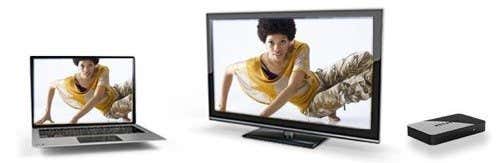
The AirPlay feature that is supported on Macs is one feature that has been missing on Windows computers for a long time. Luckily, things have changed and Intel has come out with a technology called Intel Wireless Display (WiDi), which lets you stream your laptop screen to an HDTV wirelessly.
Of course, the main downside with WiDi as with AirPlay technology is that it’s relatively new and therefore you can only use it if you have a PC that supports WiDi. If you’re planning on buying a new PC soon, you should look into whether the feature is supported or not as it can make streaming your laptop or PC screen to your HDTV relatively easy.
There are only a couple of HDTVs that support WiDi right now, but you can buy an adapter for any HDTV that will let you stream content to that TV from a WiDi enabled device.
Imation Link Wireless HD Audio/Video Extender - Supports up to 720p for video and can transmit audio also. Requires DisplayLink software, which is available for Mac and PC.
Veebeam HD – This kit supports 1080p wireless HD video and digital audio.
Netgear Push2TV – This works with the new Intel Wireless Display technology I mentioned above and needs a PC that supports WiDi. It doesn’t support the Mac OS at all as of right now.
So those are your options for connecting your laptop or PC to your TV via wired connection or wirelessly. The fastest and most reliable way is still via cable, but you if your computer supports the latest AirPlay or WiDi technology, you’ll be good to go. The wireless kits use sub-par technology and won’t give you as good results as the other technologies mentioned. Enjoy!
However, if you have bought a laptop like the MacBook Pro recently, then there is a way to wirelessly stream whatever is on your screen to your TV using Apple AirPlay. Unfortunately, there is nothing like that for Windows computers just yet, even with the release of Windows 8. This is one area where it’s advantageous to buy a Mac over a PC because of the wirelessly streaming feature.
Connect Laptop to TV via Cable
S-Video
Five years ago, this used to be the most common method for connecting a laptop to a TV because S-Video cables are cheap and just about every laptop and TV back then had a S-Video port. Nowadays, it’s rare to find a laptop with an s-video port, though lots of moderns TVs still include the port. Remember, there are two types of S-Video cables: 4-pin and 7-pin. Most laptops and PC’s are equipped with a 7-pin port, so if your TV only has a 4-pin S-Video port, then this method will not work or you’ll have to get an adapter.
S-Video picture quality is moderate and does not support high-definition video. Also, S-Video ports do not support audio, so you’ll have to buy a separate cable for that purpose. DVI and HDMI are best suited for HD signals.
VGA
VGA, like S-Video, was another common port found on all laptops and TVs/computer screens back in the day. Again, you’ll still find the port on HDTVs and monitors, but not on laptops. Most desktops still support VGA and have VGA ports on the back. In terms of picture quality, VGA is bette than S-Video. Also, as with the S-Video cable, VGA cables are very cheap. VGA cables do not support audio, just like S-Video cables.
DVI
DVI stands for Digital Visual Interface with “digital” being the key word there. The digital signal will give a higher quality picture than either S-Video or VGA. Of course, your computer will need to have a DVI connection and your TV will need to be an HDTV. DVI cables used to be expensive, but now you can get them for $5 to $10 online. Also, DVI cables to do not support audio either, so you still need a separate cable for that.
DVI cables are also a bit complicated as you have DVI-I (Single Link), DVI-I (Dual Link), DVI-D (Single Link), DVI-D (Dual Link) and DVI-A. The reason why DVI became popular is because it supports analog connections also, namely VGA. You can buy a DVI to VGA adapter to convert between a DVI output and VGA input, etc.
HDMI
HDMI (High-Definition Multimedia Interface) will give you the best quality picture on a HDTV. Even though HDMI is very popular, a lot of laptops still do not come with HDMI ports built-in. Luckily, HDMI is compatible with DVI, so you can get a HDMI to DVI cable to connect it to your HDTV. Unfortunately, HDMI cables are pretty expensive these days. You can buy cheap ones, but you may not get the same quality picture as a more expensive cable.
There are also many versions and types (A thru E) of HDMI cables that support different features like audio, 3D over HDMI, Ethernet, and 4K resolution support. The best part about HDMI cables is that you get high-definition video and audio passed through the cable, which makes it very convenient when connection a laptop or PC to your HDTV.
DisplayPort
DisplayPort and Mini-DisplayPort are very similar to HDMI and DisplayPort is meant to complement HDMI, not replace it. The basic advantage to DisplayPort is that it can support up to 4 video and audio streams across one cable. That mean you could connect up to 4 monitors at 1920×1200 or 2 monitors at 2560×1600 pixels.
HDMI is still more popular, but you’ll find DisplayPort ports on Apple computers, the Microsoft Surface tablets, and even some Windows PCs. DisplayPort is also backwards compatible with VGA and DVI, which is nice.
Connect Laptop to TV Wirelessly
In addition to connecting your laptop to your TV using a cable, you can also wirelessly project your laptop display on your TV using new wireless technologies. I’ll mention a couple of the different technologies that currently exist and explain what hardware is needed. Unfortunately, the main reason wireless streaming of laptop and desktop displays to TVs has not become ubiquitous is because of the extra cost of the hardware needed.Apple TV
If
you have a MacBook Pro, MacBook Pro, MacBook Air, Mac Mini or iMac
that is from 2011 or later, you can wireless stream your Apple laptop or
desktop display to your TV using an Apple TV in full HD. The Apple TV
is a separate hardware device that cost $99. Since only a few of the
most recent Mac computers support AirPlay Mirroring, it’s not very popular.Intel Wireless Display
The AirPlay feature that is supported on Macs is one feature that has been missing on Windows computers for a long time. Luckily, things have changed and Intel has come out with a technology called Intel Wireless Display (WiDi), which lets you stream your laptop screen to an HDTV wirelessly.
Of course, the main downside with WiDi as with AirPlay technology is that it’s relatively new and therefore you can only use it if you have a PC that supports WiDi. If you’re planning on buying a new PC soon, you should look into whether the feature is supported or not as it can make streaming your laptop or PC screen to your HDTV relatively easy.
There are only a couple of HDTVs that support WiDi right now, but you can buy an adapter for any HDTV that will let you stream content to that TV from a WiDi enabled device.
Wireless Kits
If you don’t have any of those technologies built into your computer or want something that’s not proprietary, then you can buy wireless computer to HDTV kits. There are quite a few of these out there and I’ll link to some of the popular ones I’ve heard about myself.Imation Link Wireless HD Audio/Video Extender - Supports up to 720p for video and can transmit audio also. Requires DisplayLink software, which is available for Mac and PC.
Veebeam HD – This kit supports 1080p wireless HD video and digital audio.
Netgear Push2TV – This works with the new Intel Wireless Display technology I mentioned above and needs a PC that supports WiDi. It doesn’t support the Mac OS at all as of right now.
So those are your options for connecting your laptop or PC to your TV via wired connection or wirelessly. The fastest and most reliable way is still via cable, but you if your computer supports the latest AirPlay or WiDi technology, you’ll be good to go. The wireless kits use sub-par technology and won’t give you as good results as the other technologies mentioned. Enjoy!


