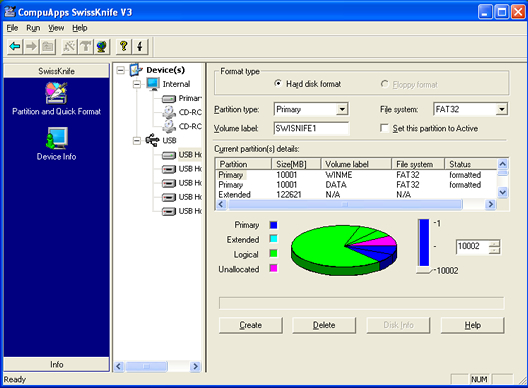
If you have ever tried to format a USB thumb
drive or memory stick, you may have noticed that the only options you
get are FAT and FAT32 file systems. This is the default behavior in
Windows XP. However, with some slight tweaking of settings, you can
actually format your removable storage devices in NTFS format, including external hard drives, etc.
Of course, there is a reason why Windows defaults the formatting of removable storage to FAT and FAT32. There are actually a few advantages and disadvantages to formatting a USB drive in NTFS format, so we’ll go through those before actually talking about how to do it.
The advantages of enabling NTFS of removable storage devices are mostly security related. For example, an NTFS file system lets you to add allow and deny permissions on individual files and folders for specific Windows users, something you cannot do in the FAT file system. But that’s not all in terms of security. You can also encrypt files using Windows XP’s built-in encryption.
Other benefits include the ability to compress files and therefore save space on your USB drive. You can also set disk quotas and even create partitions! Formatting USB drives in NTFS has several advantages that would be good if you need to use some of these advanced features, i.e. for your IT department or if you’re just paranoid!
However, there are also a few drawbacks to using NFTS on a USB drive. Firstly, there is a lot more writing to the drive that is required when using NTFS and therefore your access to the device will be slower. Will it make a major difference that would prevent people from using it? Probably not, but it’s something to consider. Also, versions of Windows older than 2000 cannot read NTFS file systems, nor can most Linux systems.
The other major downside is that if you encrypt your files on the USB drive, you will not be able to open them anywhere else. Actually, this can be considered a downside or an upside depending on what you want to do. If you want to secure your USB stick so that only your user account on your one computer can open the files, then encrypting is perfect. If not, then do not encrypt the files.


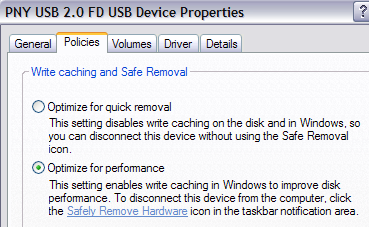
 Now you will see two options, the “Optimize for quick removal” selected by default. Go ahead and change that by selecting the “Optimize for performance” option. This enables writing caching on the drive and therefore allows you to format it as NTFS! Sweet.
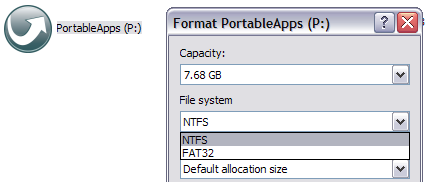
That’s it. Now click OK and then go to My Computer. Right click on the drive in My Computer and choose Format. In the File System drop down you will now see the option for NTFS!

Of course, there is a reason why Windows defaults the formatting of removable storage to FAT and FAT32. There are actually a few advantages and disadvantages to formatting a USB drive in NTFS format, so we’ll go through those before actually talking about how to do it.
The advantages of enabling NTFS of removable storage devices are mostly security related. For example, an NTFS file system lets you to add allow and deny permissions on individual files and folders for specific Windows users, something you cannot do in the FAT file system. But that’s not all in terms of security. You can also encrypt files using Windows XP’s built-in encryption.
Other benefits include the ability to compress files and therefore save space on your USB drive. You can also set disk quotas and even create partitions! Formatting USB drives in NTFS has several advantages that would be good if you need to use some of these advanced features, i.e. for your IT department or if you’re just paranoid!
However, there are also a few drawbacks to using NFTS on a USB drive. Firstly, there is a lot more writing to the drive that is required when using NTFS and therefore your access to the device will be slower. Will it make a major difference that would prevent people from using it? Probably not, but it’s something to consider. Also, versions of Windows older than 2000 cannot read NTFS file systems, nor can most Linux systems.
The other major downside is that if you encrypt your files on the USB drive, you will not be able to open them anywhere else. Actually, this can be considered a downside or an upside depending on what you want to do. If you want to secure your USB stick so that only your user account on your one computer can open the files, then encrypting is perfect. If not, then do not encrypt the files.
How to format USB drive with NTFS
First, connect your USB device to your computer. Then right-click on My Computer from the desktop and choose Manage.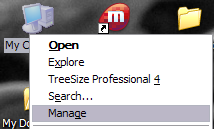
Next click on Device Manager and then expand out Disk Drives. You should see your USB drive listed there as “Generic USB 2.0 USB Drive” or something similar.

Now right-click on the USB drive under Disk Drives and choose Properties. Then go to the Policies tab.
That’s it. Now click OK and then go to My Computer. Right click on the drive in My Computer and choose Format. In the File System drop down you will now see the option for NTFS!
You can now secure your USB flash drive or external USB hard drive in any way you like! Enjoy!